Why Your Internet Is Slow and How to Fix It
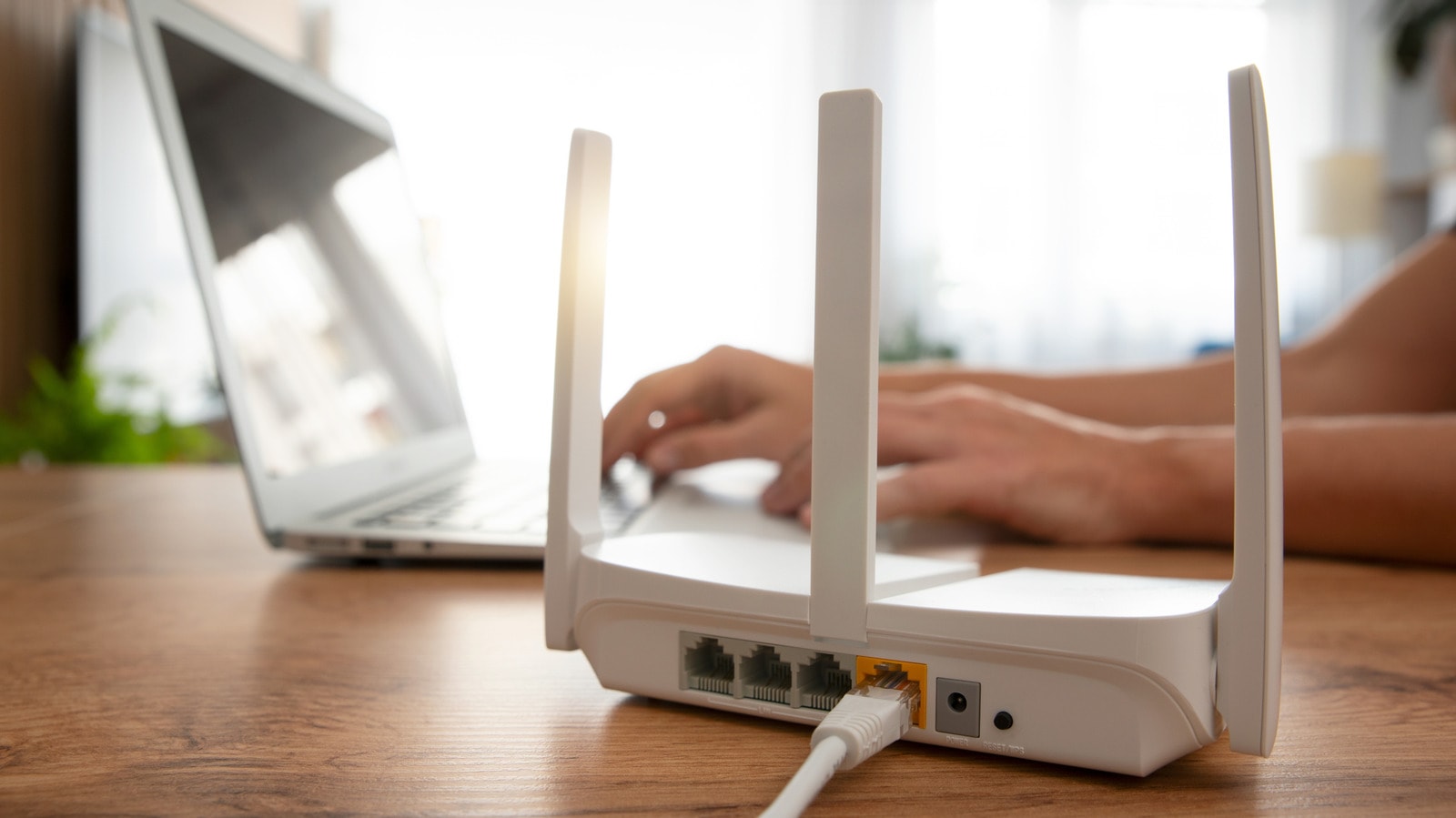
Many of us have experienced the frustration of paying for a high-speed internet package, only to find that downloading files or streaming videos remains sluggish. Often, the culprit is not your service provider, but your home router's configuration. Specifically, the issue may be the Wi-Fi frequency band your smartphone or laptop is using.
The difference between 2.4GHz, 5GHz, and 6GHz
Most modern routers broadcast on multiple frequencies. The 2.4GHz band is the oldest standard; while it excels at penetrating walls, it offers slower speeds. It is ideal for smart home devices that do not require high data throughput.
Conversely, the 5GHz band handles significantly more data and provides a high-speed connection, though its effective range is smaller. The latest 6GHz frequency, found in Wi-Fi 6E and 7 standards, offers even greater speeds but is the weakest when it comes to overcoming physical obstacles.
What is Band Steering and why should you disable it?
Modern routers feature a function called "Band Steering," which groups all frequencies under a single network name (SSID) and attempts to automatically switch your device to the optimal band. In practice, however, this system often fails, leaving devices on the slower 2.4GHz band instead of the faster 5GHz one.
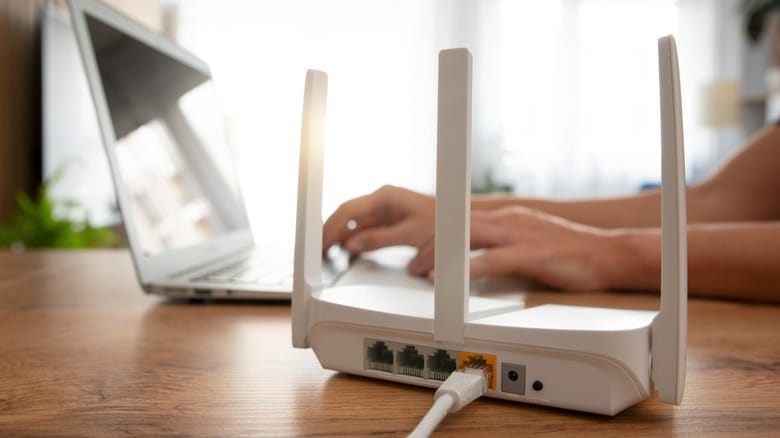
To resolve this, access your router's control panel—the address is typically printed on the back of the device. Navigate to "Wireless Settings" and disable "Band Steering" or "Smart Connect." This allows you to assign unique names to each frequency. You can then ensure your smartphone or computer remains connected to the 5GHz network, while reserving the 2.4GHz band for less demanding devices.
Additional tips: Channel congestion
If you still experience issues after separating your frequencies, the problem may be channel congestion. This is common in apartment buildings where neighbors' routers interfere with one another. On Android, you can use the "Wi-Fi Analyzer" app, or "NetSpot" on a computer, to identify the least congested channel and update your router settings accordingly.
For the 2.4GHz band, channels 1, 6, and 11 are considered the best as they do not overlap. These simple adjustments can significantly improve your home network performance, which is especially important for 4K video streaming and online gaming.