Why Your Computer's Front USB Ports Are Less Efficient
Understanding the hardware trade-offs between convenience and performance
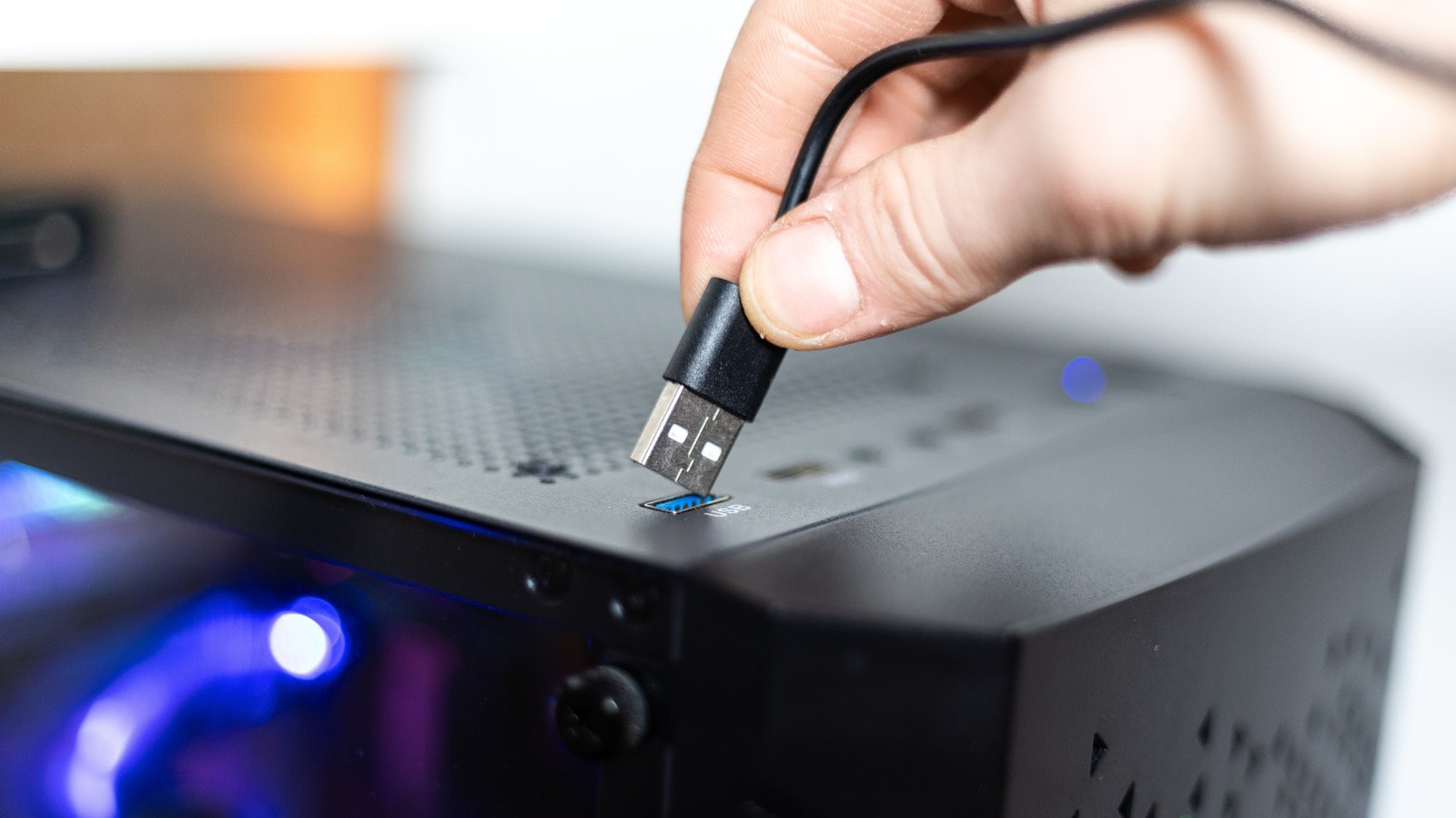
Technical limitations and connectivity hurdles
Most desktop computers feature USB ports on the front panel, which significantly simplifies daily tasks for users. However, behind this convenience lies a technical reality that often affects file transfer speeds and device charging quality. The issue is not a malfunction of the computer itself, but rather how these ports are constructed.
Ports located on the back of a computer are soldered directly to the motherboard, providing the shortest path for data and power. In contrast, front ports are connected to the motherboard via extension cables. This additional connection causes a minimal, yet real, signal loss. Furthermore, many front-panel ports often share the same internal connector, meaning that total bandwidth and power are distributed among them.
The real impact on your devices
Even Apple hardware is not immune to these limitations. For example, modern Mac mini or Mac Studio models offer 10Gbps USB-C ports on the front panel, whereas the Thunderbolt ports on the back reach 40Gbps. A similar situation exists on high-end motherboards, where front-panel ports often share resources, which becomes particularly noticeable when using two external solid-state drives (SSDs) simultaneously.
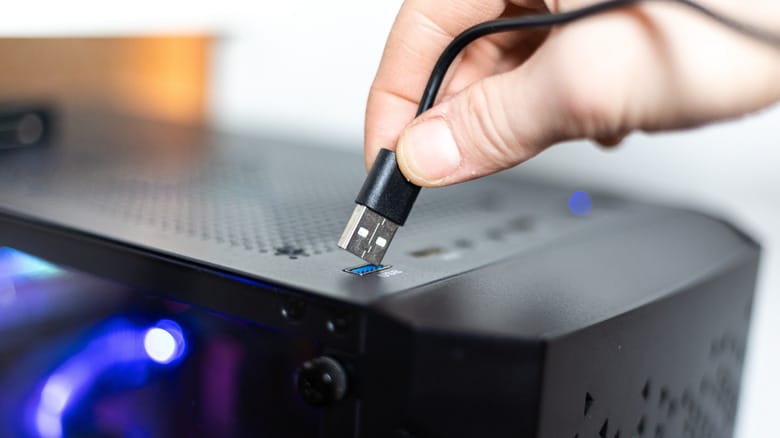
However, it is not always necessary to use the rear ports. A mouse, keyboard, headphones, or standard USB flash drives work perfectly on front ports. They do not require high speeds or large amounts of power, so the capacity of the front-panel ports is entirely sufficient for them.
What should you keep in mind?
If your goal is to transfer large amounts of data quickly or use devices that require high bandwidth—such as external SSDs, video capture cards, or VR headsets—always use the ports on the back of the computer. This will help you avoid the risk of data loss or connection interruptions.
It is recommended to check the specifications of your motherboard or computer to know exactly which port is intended for what purpose. Although port colours or symbols sometimes indicate their capabilities, this standard is not always consistent. By selecting the right port, your peripheral devices will always operate with maximum efficiency.