Why You Should Cap Your FPS: A Gamer's Guide
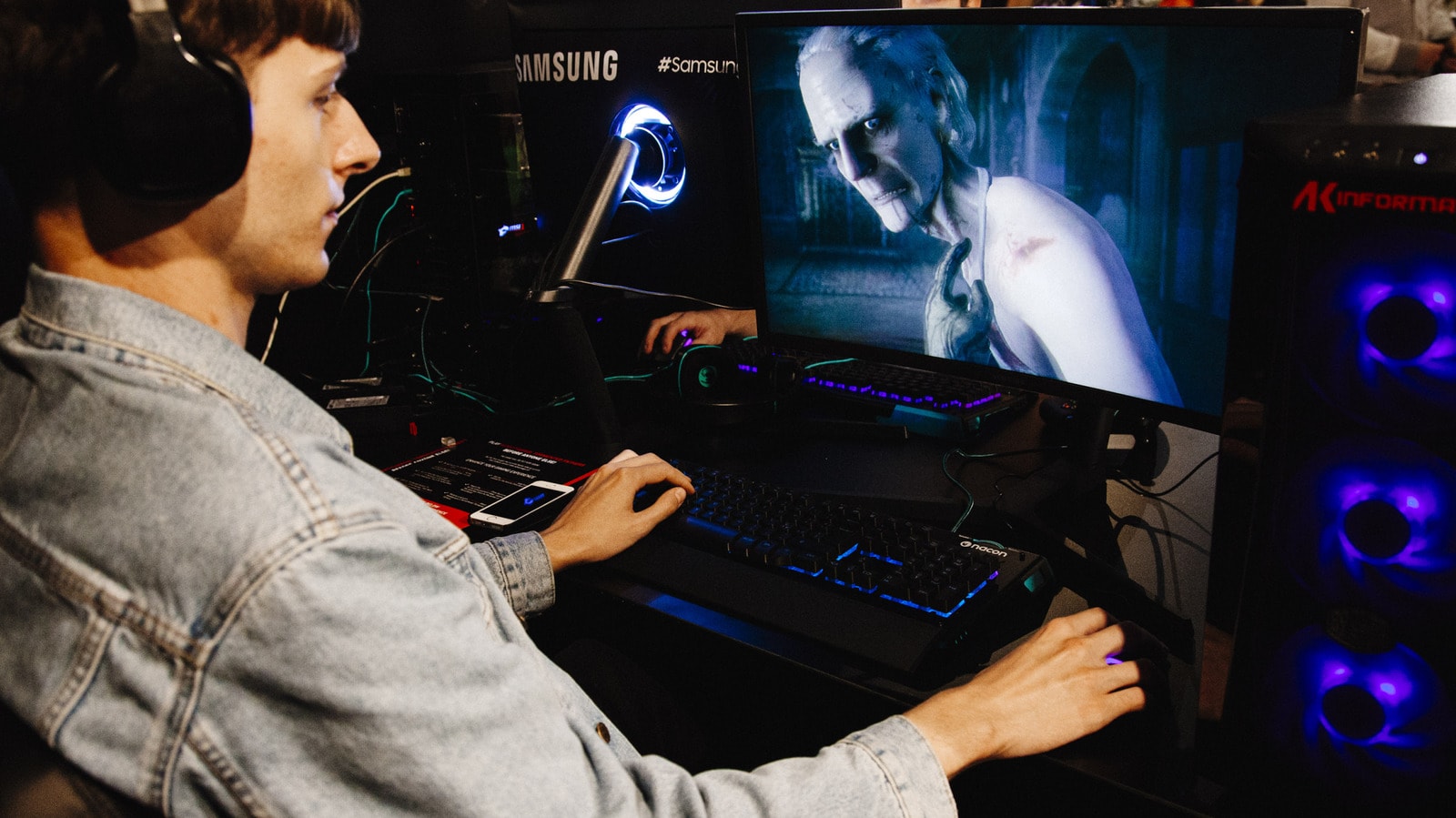
Many gamers believe that higher FPS (frames per second) always results in a better experience. However, there are technical reasons why capping your frame rate is beneficial for your PC. This process not only reduces the load on your GPU but also helps prevent screen tearing.
What is Screen Tearing and How to Combat It
Screen tearing occurs when your graphics card sends a new frame to the monitor while it is still displaying the previous one. This results in horizontal lines appearing on the screen, causing visual discomfort. Capping your FPS, especially when paired with V-Sync (vertical synchronisation), virtually eliminates this issue.
If you use a monitor with VRR (Variable Refresh Rate) support, such as NVIDIA G-Sync or AMD FreeSync, capping your frame rate is particularly effective. The goal is to keep the game within the monitor's effective VRR range, which typically begins at 48 FPS and goes up to the monitor's maximum refresh rate. By capping your game 3-4 frames below your monitor's maximum refresh rate—for example, at 117 FPS on a 120Hz monitor—you achieve a smooth image without additional input lag.
How to Set a Frame Rate Limit
Most games have a built-in frame rate limiter, but the most reliable method is using your graphics card's software:
- For NVIDIA users: Go to the NVIDIA Control Panel, select Manage 3D Settings > Global Settings > Max Frame Rate, and set your desired limit.
- For AMD users: Use the AMD Adrenalin software, navigate to Gaming > Radeon Chill, and set your minimum and maximum frame rates.
- Third-party software: If other options fail, you can use RTSS (RivaTuner Statistics Server).
V-Sync and Input Lag
The main drawback of V-Sync is input lag, as it forces the GPU to wait for the monitor's refresh cycle to complete. However, if you consistently achieve high frame rates, you can try "Fast V-Sync" (for NVIDIA users), which reduces lag while maintaining image clarity.
Ultimately, setting an FPS limit does not degrade your gaming experience. On the contrary, it reduces GPU temperatures and fan noise, creating a more stable and comfortable environment. You likely won't notice the difference between 237 and 240 FPS, but your system will operate with much greater stability.