Why iPhone Photos Turn Out Blurry and How to Fix It
Simple adjustments to settings and technique can dramatically sharpen your mobile shots.
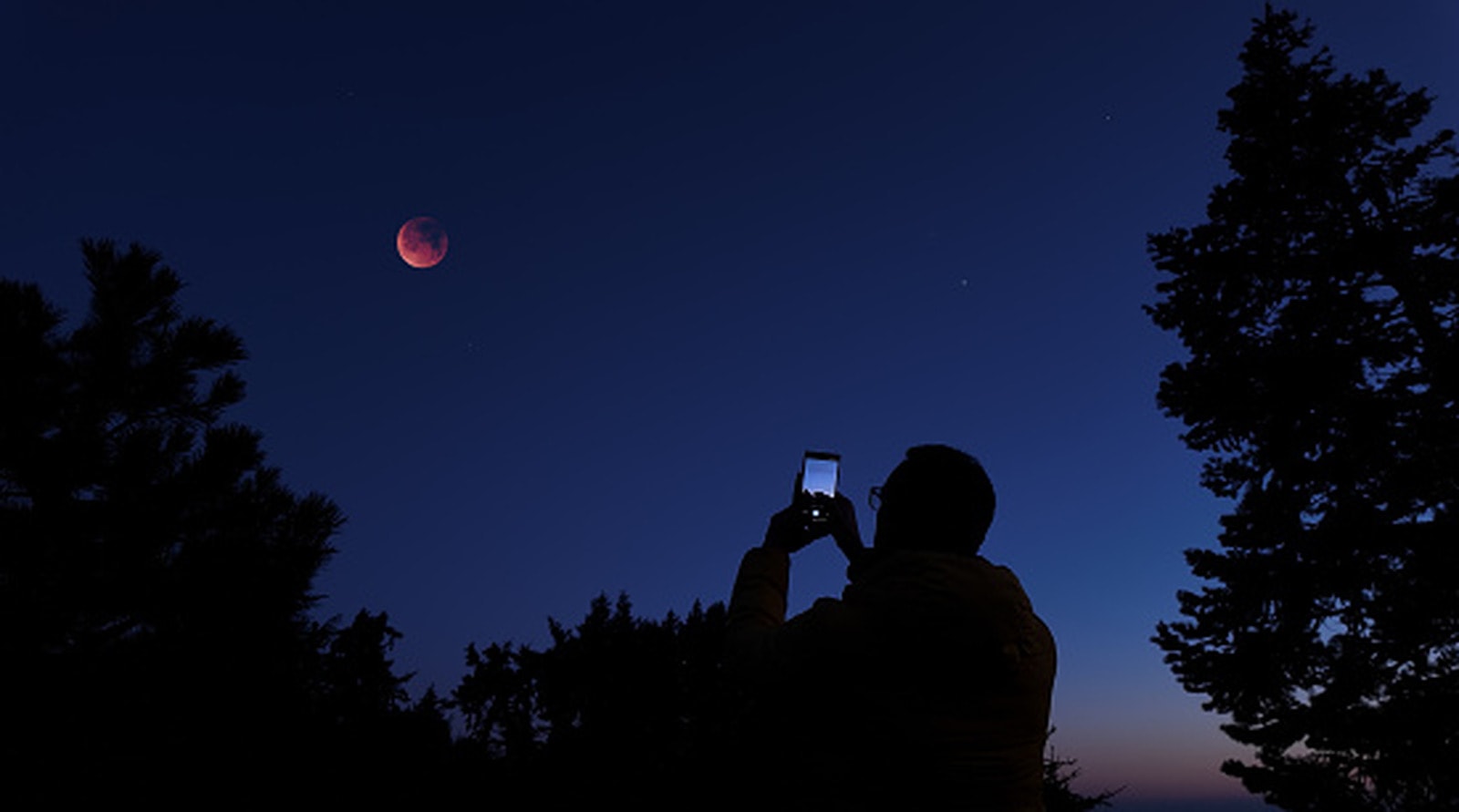
Why are photos blurry?
Poor image quality on a smartphone is often a multifaceted problem. Whilst the first thing most people check is whether the camera lens is clean, the real culprit frequently lies within camera settings or shooting technique. Users often overlook how ambient lighting and autofocus behaviour influence the final result.
How to improve quality?
First, make sure the lens is thoroughly clean, as fingerprints can scatter incoming light and soften the picture. However, if the issue persists, pay attention to focusing. Tapping on your subject in the iPhone Camera app locks focus, substantially reducing the risk of blurriness. It is also vital to keep your hand as steady as possible; in low-light environments, the smartphone automatically lowers the shutter speed, meaning even slight hand movements can spoil the shot.
Software is another critical factor. Apple's High Dynamic Range (HDR) mode combines multiple exposures taken in rapid succession to preserve fine detail. If this feature is disabled or functioning incorrectly, images may lack sharpness. It is worth checking your camera settings to verify whether Smart HDR is enabled to properly balance highlights and shadows.
Finally, if you have already taken a blurry shot, do not be too quick to delete it. Modern editing suites, including the iPhone's built-in Photos editor, allow you to adjust "Sharpen" and "Definition" sliders to bring out lost detail. Nevertheless, digital processing cannot fully replace an optically sharp capture.
These adjustments are especially relevant for anyone keen on mobile photography. Often, spending just a few moments reviewing your settings is all it takes to bring your snapshots closer to professional quality.