Why Audio Lags Behind Video and How to Fix It
Simple steps to fix sound and picture synchronization issues.
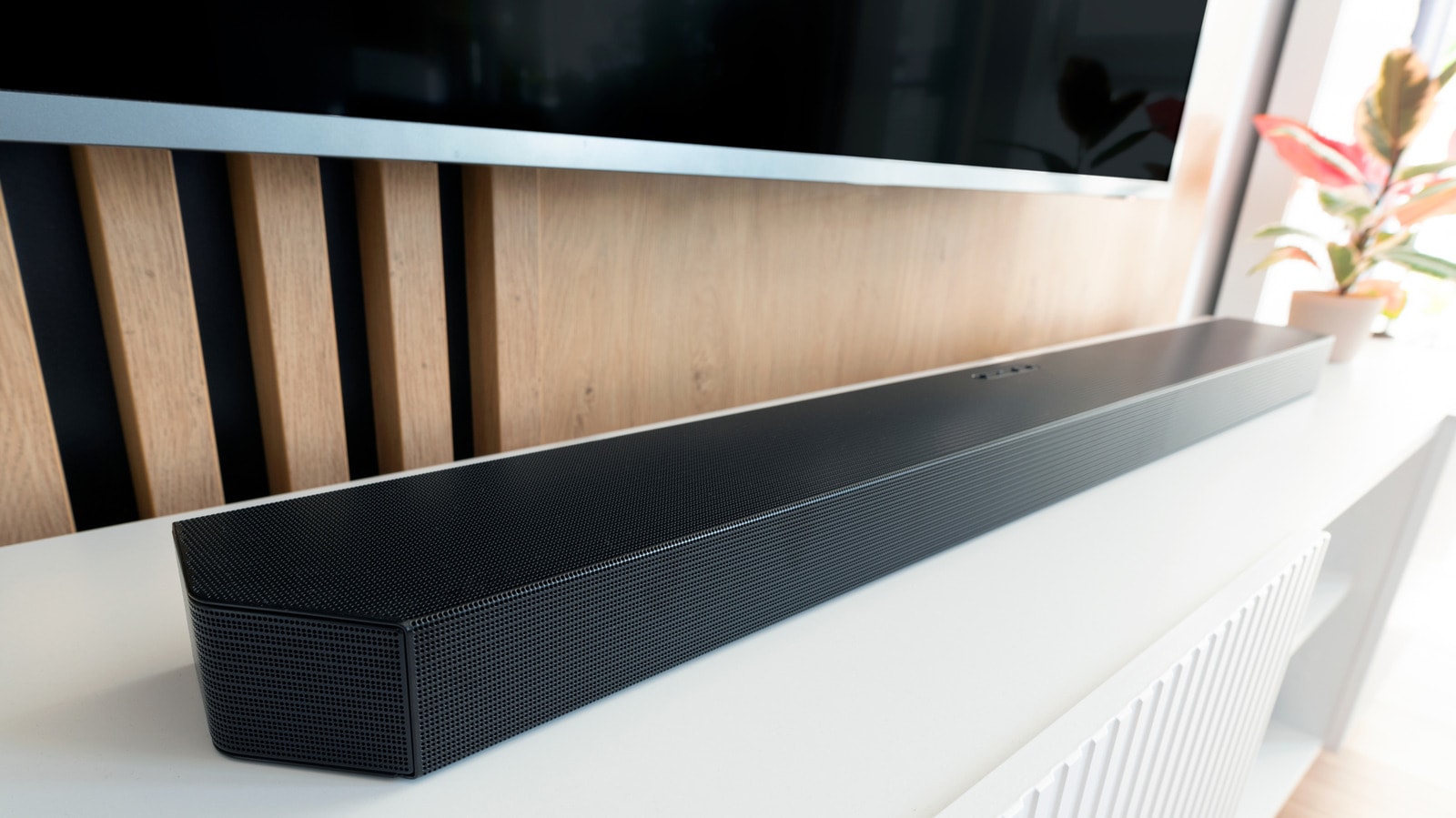
It is a frustrating experience when the movement of a character's lips does not match the dialogue on screen. The issue is even more noticeable during sports broadcasts, where a commentator might celebrate a goal before you actually see it happen. While this creates a poor viewing experience, synchronization issues between a soundbar and a television are often easy to resolve.
Why Audio Delay Occurs
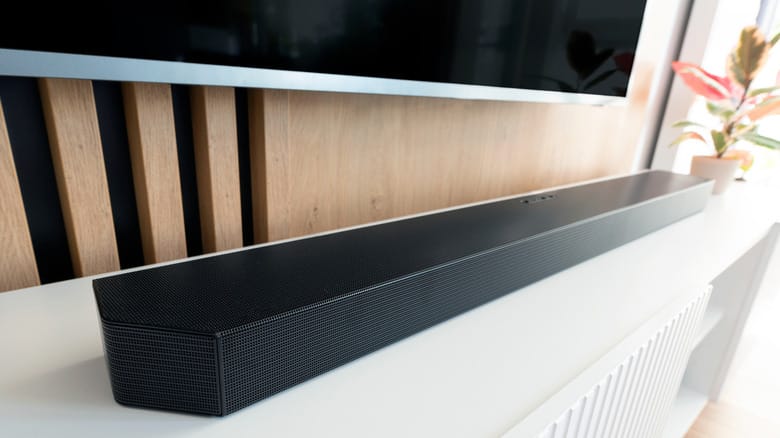
The primary cause of audio lag is often the audio processing stage. When using a television’s built-in speakers, the TV processes both video and audio simultaneously, ensuring perfect synchronization. However, adding a soundbar splits the process: the TV handles the video, while the soundbar handles the audio. If the decoding speeds between these two devices are mismatched, the audio will trail behind the video.
Problems can also stem from faulty connections or outdated technology. First, check your HDMI or optical cables; a loose connection is often the culprit. Additionally, standard HDMI ARC (Audio Return Channel) technology may lack the bandwidth for high-quality audio, forcing the system to take extra time to convert the signal. In this case, upgrading to an eARC port and a high-speed cable is the best solution.
How to Resolve the Issue
If the delay is persistent, try these simple steps:
- Disable Extra Features: TV settings such as digital noise reduction, dynamic contrast, or virtual surround sound require additional processing. Turning these off often reduces latency.
- Use AV Sync Settings: Most televisions have an "AV Sync" or "Audio Delay" function within their sound menus. This allows you to manually adjust the timing of the audio until it matches the video.
- Direct Connection: If the problem persists, try connecting your devices—such as a gaming console or streaming box—directly to the soundbar's HDMI port, then connect the soundbar to the TV. This "direct routing" bypasses the additional processing performed by the TV.
Brand-Specific Solutions
Various manufacturers offer their own tools for synchronization. For instance, on Samsung soundbars, you can use the "Audio Sync" button on the remote, while LG models feature an "AV Sync" setting. Sonos users can adjust the audio sequence using a slider in the mobile app under the menu path: Home Theater > TV Dialog Sync.
Finally, if nothing else works, try turning off all devices and unplugging them from the power source for one minute before restarting. Also, ensure that the firmware on both your TV and soundbar is up to date. Manufacturers frequently release specific updates to resolve these types of technical glitches.