What to do if your MacBook cannot detect a USB device
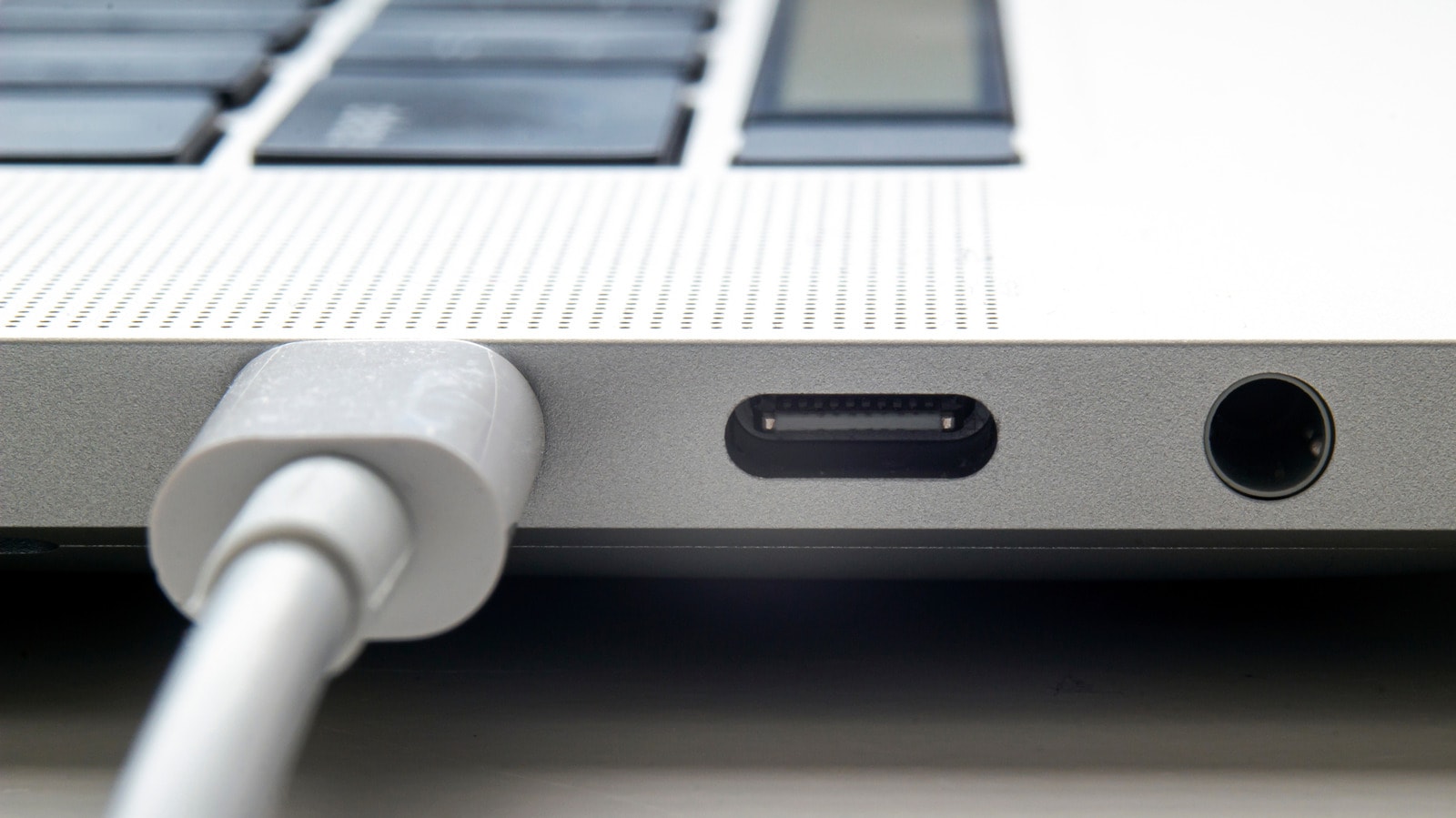
Check privacy settings
Apple's macOS requires permission when connecting new devices for security reasons. This protection prevents malicious software from infiltrating your system, though users often accidentally decline this request. If your device is charging but not transferring data, try disconnecting and reconnecting it to trigger the permission prompt again.
To avoid future interruptions, go to the Apple menu, select System Settings, and then Privacy & Security. In the Accessories section, you can configure settings to allow trusted devices automatically. However, for security reasons, enabling "Always allow" is not recommended unless you are in a completely secure environment.
Hardware limitations and power issues
If the software settings are in order, the problem may be hardware-related. First, hold the Option key and select Apple menu > System Information. If you do not see the device in the Hardware list, try connecting it to a different port on your Mac. Often, USB hubs and docking stations require additional power themselves, or the signal chain within them may be damaged.
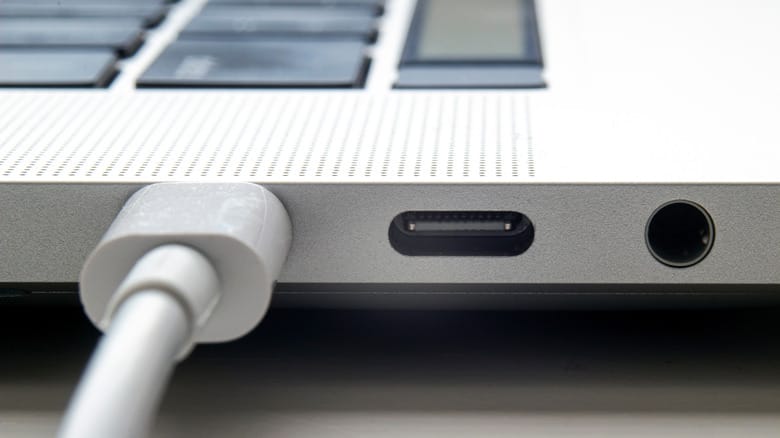
Pay attention to power requirements as well. Some devices require more energy than a Mac port can provide. If an error message appears on the screen, check if the device requires an additional power cable. If the problem persists, it is best to contact Apple technical support.
Software updates and physical condition
Do not forget to update macOS. Often, outdated software or driver incompatibilities cause devices to malfunction. Also, ensure you are using a compatible file system (APFS, FAT, or ExFAT), as macOS may not recognize other formats.
Finally, check the physical condition of the cable. Dust, lint, or bent pins are common causes of connection failure. Use a can of compressed air or a soft tool to clean the ports. If the cable shows signs of damage, exposed wires, or burns, replace it immediately, as such defects can be a fire hazard.