What to Do If Your Computer Camera or Microphone Stops Working
A quick guide to troubleshooting your audio and video hardware
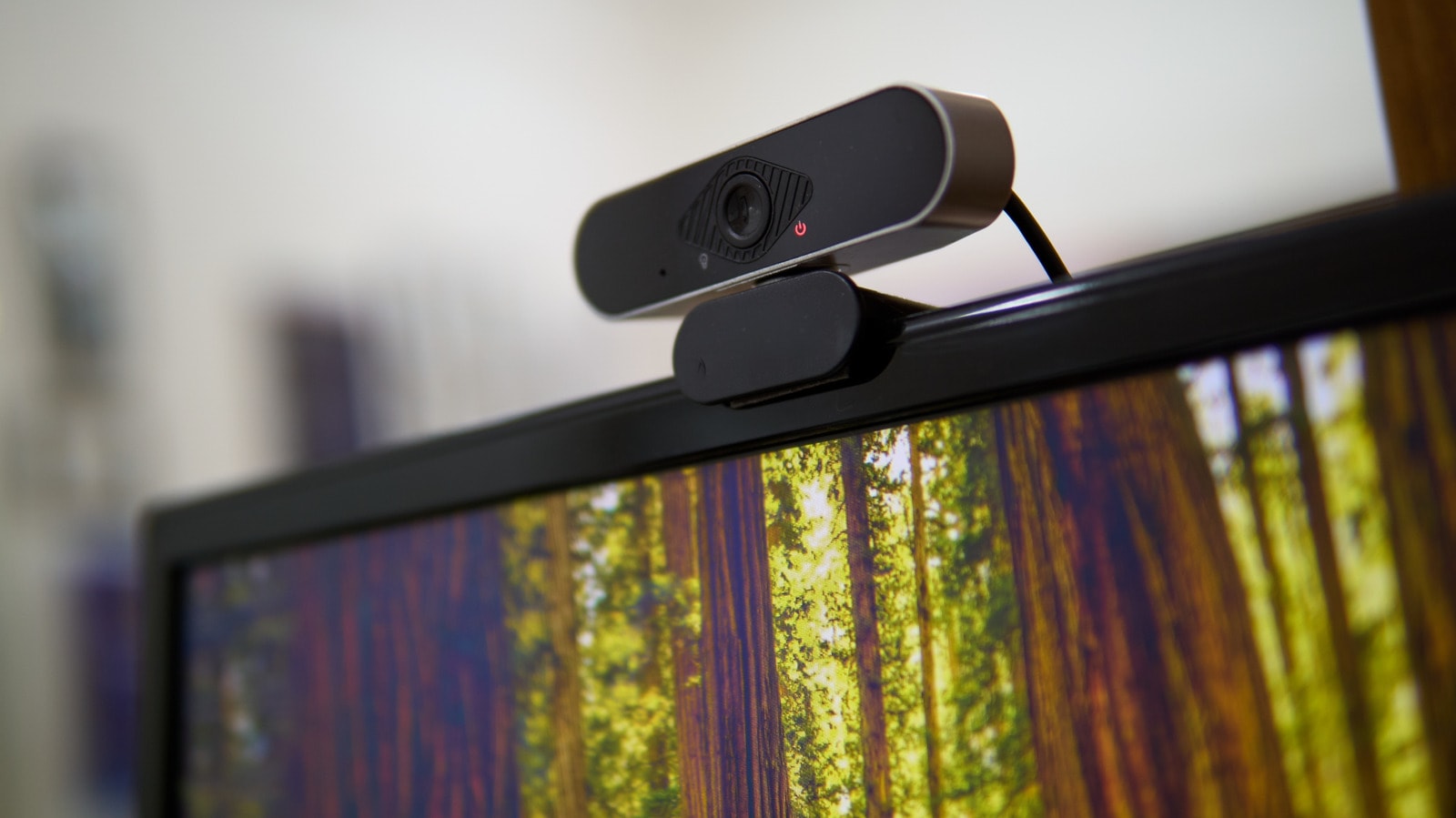
In the modern world, webcams and microphones are essential components of our computers. We rely on them for both professional meetings and staying in touch with friends. However, we often face situations where these devices suddenly stop working, which can cause significant stress before an important call. The good news is that these problems can usually be resolved quite easily.
Check Physical Settings
The first step is simple, yet it is often where the root cause lies. Ensure that your camera or microphone is not physically switched off. Many modern laptops feature a physical privacy shutter for the camera or a dedicated mute button for the microphone. If you are using external peripherals, check all cables and connectors. Often, the issue is simply a loose or damaged cable.
Configure System Settings
If the physical hardware is in order, move on to your operating system settings. On Windows 11, check the camera status under the 'Bluetooth & devices' menu, and verify microphone levels in the 'System > Sound' section. It is important to ensure the microphone volume is set between 80 and 100 percent. For macOS, navigate to 'System Settings', select 'Sound > Input', and confirm that the correct microphone is selected.
App permissions are also critical. Operating systems include privacy mechanisms that may restrict applications from accessing your camera or microphone. On Windows, these settings are found in the 'Privacy & security' menu, while on Mac, they are located under 'Security & Privacy'. If permission is granted but the application still fails to function, try restarting the program.
Drivers and Updates
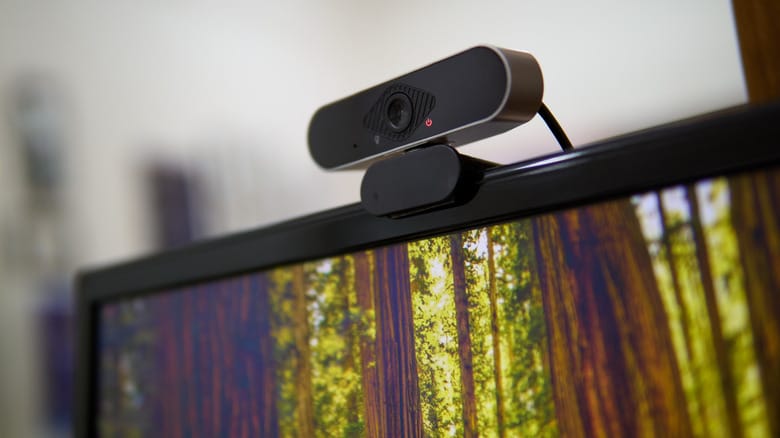
If the problem persists, you may be dealing with outdated software. Regularly check for Windows Update or macOS system updates. For Windows users, it is sometimes necessary to update graphics card drivers via official NVIDIA or AMD software.
As a last resort, you can use the 'Device Manager'. Here, you can locate your camera or microphone, uninstall the driver, and restart your computer; the system will then attempt to reinstall it automatically. If the automatic process fails, you will need to manually download the appropriate driver from the manufacturer's website.
Remember, it is best to test your equipment when you do not have an important meeting scheduled. Having a pre-configured audio and video system highlights your professionalism and saves time that would otherwise be spent dealing with stressful technical issues.