What the Bell Icon Means on the Apple CarPlay Screen
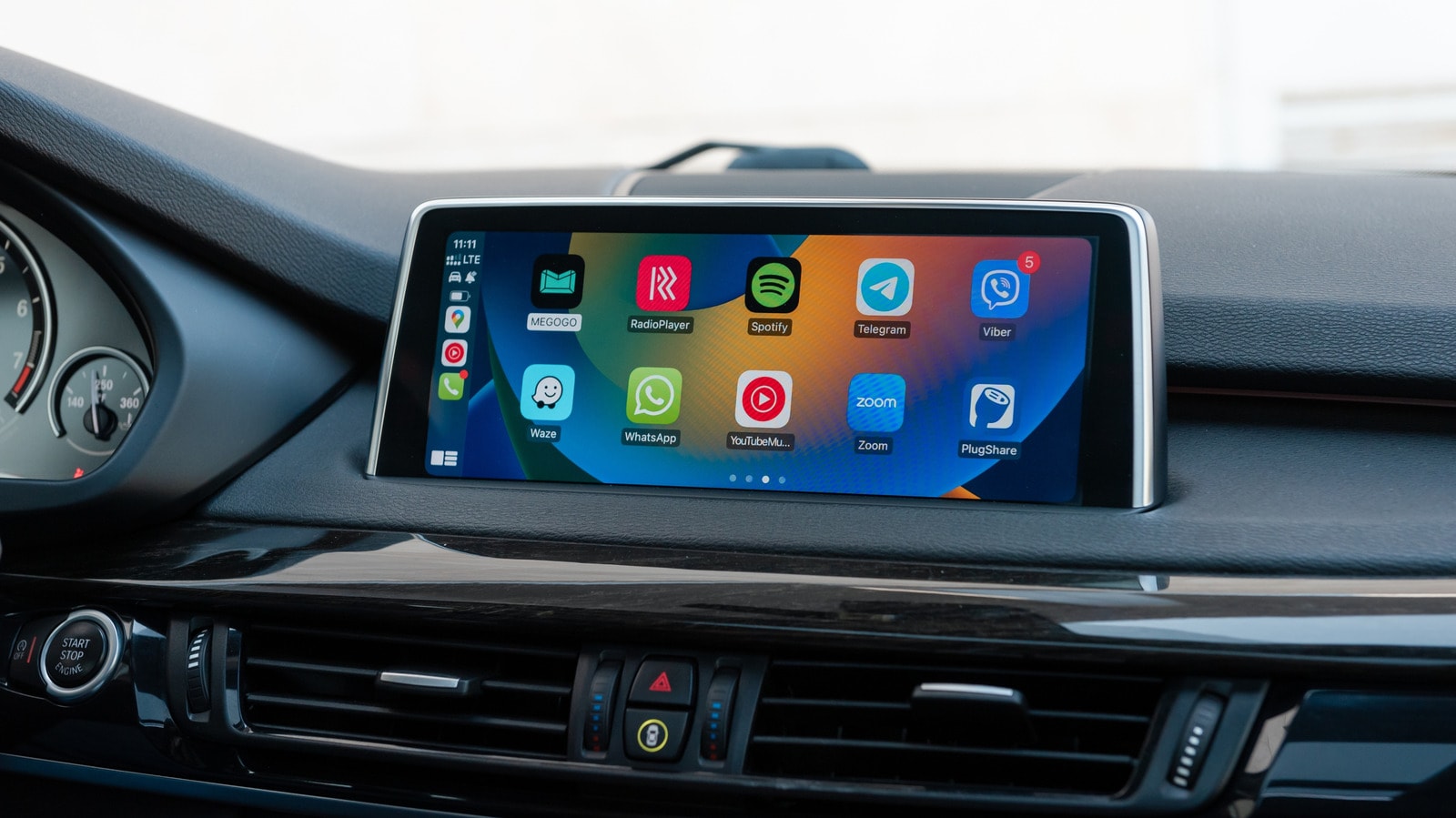
Apple's CarPlay system is designed to be as straightforward as possible to keep drivers from getting distracted. However, symbols occasionally appear in the interface whose purpose is not immediately clear. One of these is a small bell icon that shows up on the app switcher panel.
What does the bell icon do?
This symbol indicates that Siri is automatically announcing incoming notifications. The feature works with Apple's built-in apps as well as third-party applications like WhatsApp. While reading out important information can be useful, it often becomes annoying — particularly when active group chats interrupt music or podcasts. Furthermore, having personal messages read out loud in front of passengers may be unwanted.
How to adjust notifications
To control which alerts are read aloud while driving, you must adjust the settings on your iPhone. Navigate to Settings > Notifications > Announce Notifications > CarPlay. Here, you can toggle automatic announcements on or off. Within the "Announce Notifications" menu, you can also select specific apps that truly require your attention. It is advisable to turn off alerts for non-essential applications, such as shopping or food delivery services.
Safety and Focus mode
Driving requires full concentration, making notification management crucial for safety. For better control, you can use your iPhone's "Focus" mode. Under Settings > Focus, select the "Driving" mode designed specifically for motorists.
When enabled, you can choose who is allowed to reach you and which notifications get through. You can also set up an automated reply to let senders know you are behind the wheel. Most conveniently, Driving mode can activate automatically upon connecting to CarPlay by selecting "Activate With CarPlay" in the settings menu.
Ultimately, keeping notifications to a minimum whilst driving is the safest approach. Very few messages are more important than the road, so technology should not be allowed to draw your attention away.