What Is the Star Button on Your Roku Remote Used For?
Discover how this often-overlooked button can streamline your streaming experience.
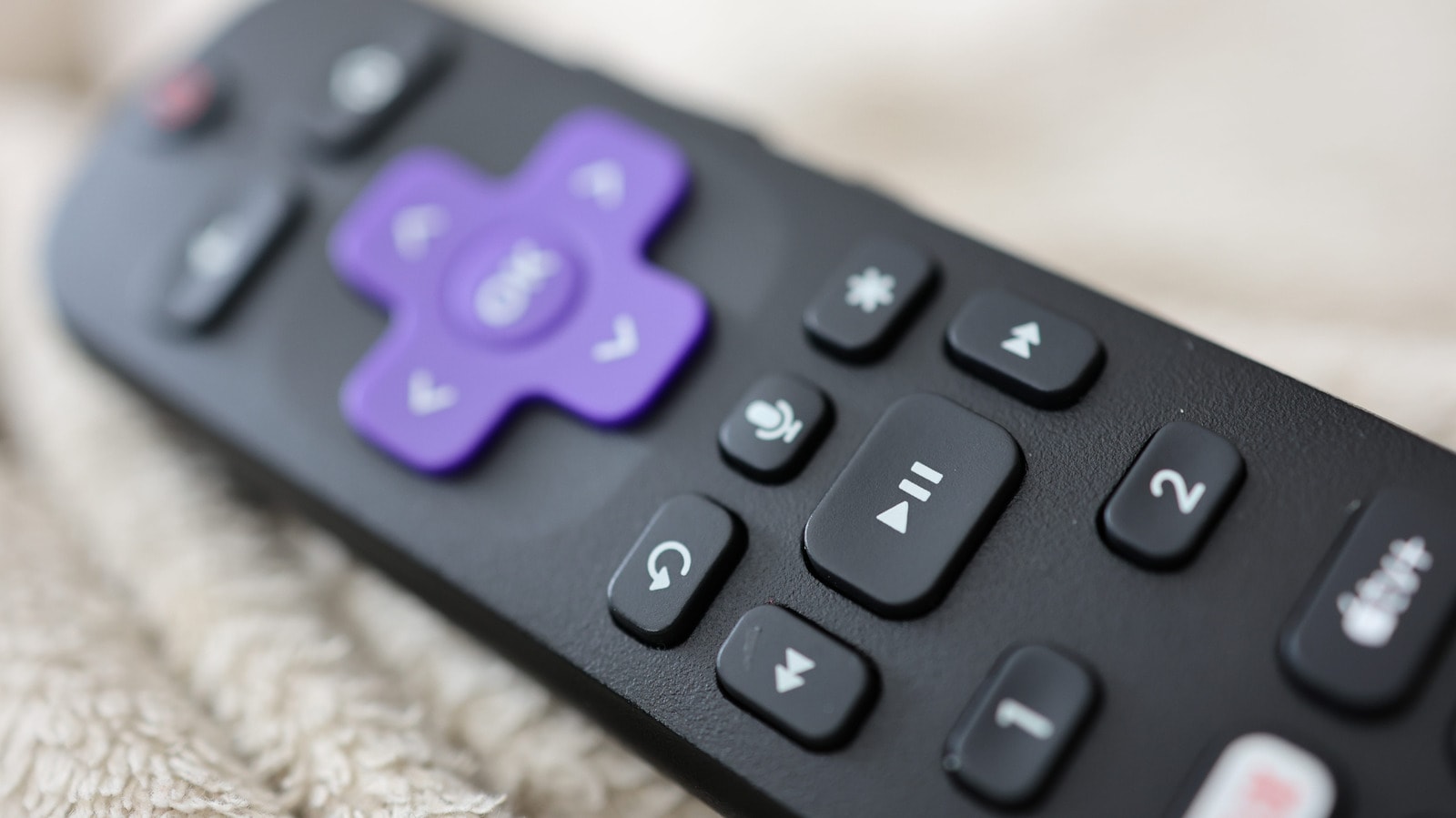
What Does the Mysterious Star Button Do?
The Roku remote is widely considered one of the most intuitive and simple designs on the market. While most buttons are self-explanatory, one exception often puzzles users: the star icon located just above the rewind button. Whether you are using the physical remote or the mobile app, this button is a constant presence, yet many users have yet to unlock its full potential.
The function of the star button is context-sensitive. It acts as a hybrid between an options menu and a quick-access tool, changing its behavior depending on where you are in the system or what you are doing at the time. Mastering this button will significantly streamline your Roku experience.
Managing the Home Screen
When you are on the Roku home screen, the star button takes on specific roles. If you press it while highlighting an app in your "Quick Access" section, it allows you to remove that channel from your list. However, within the full list of applications, the button unlocks much more functionality.
Once you highlight a specific app, pressing the star button lets you view the application version, move the app's position on the screen, remove it, rate it, provide feedback, or check for updates. For Roku TV users, if you highlight an external device, such as a gaming console, this button also allows you to rename the input.
Controlling Video Playback
During video playback, the star button opens a side panel containing contextual settings. Here, you can adjust picture quality, set a sleep timer, toggle subtitles, or change audio modes. The available options depend on the specific app you are using, but this remains the primary hub for tailoring your viewing experience.
Special Accessibility Features
Roku devices include a text-to-speech function designed to assist users with visual impairments. While this can be enabled through the main settings menu, you can also activate it instantly by pressing the star button four times in quick succession. This approach makes the Roku remote a versatile and flexible tool, saving users from having to navigate through lengthy menus.