What Does the Orange Dot on Your Samsung Galaxy Watch Mean?
Understanding the notification indicators and status icons on your wearable device
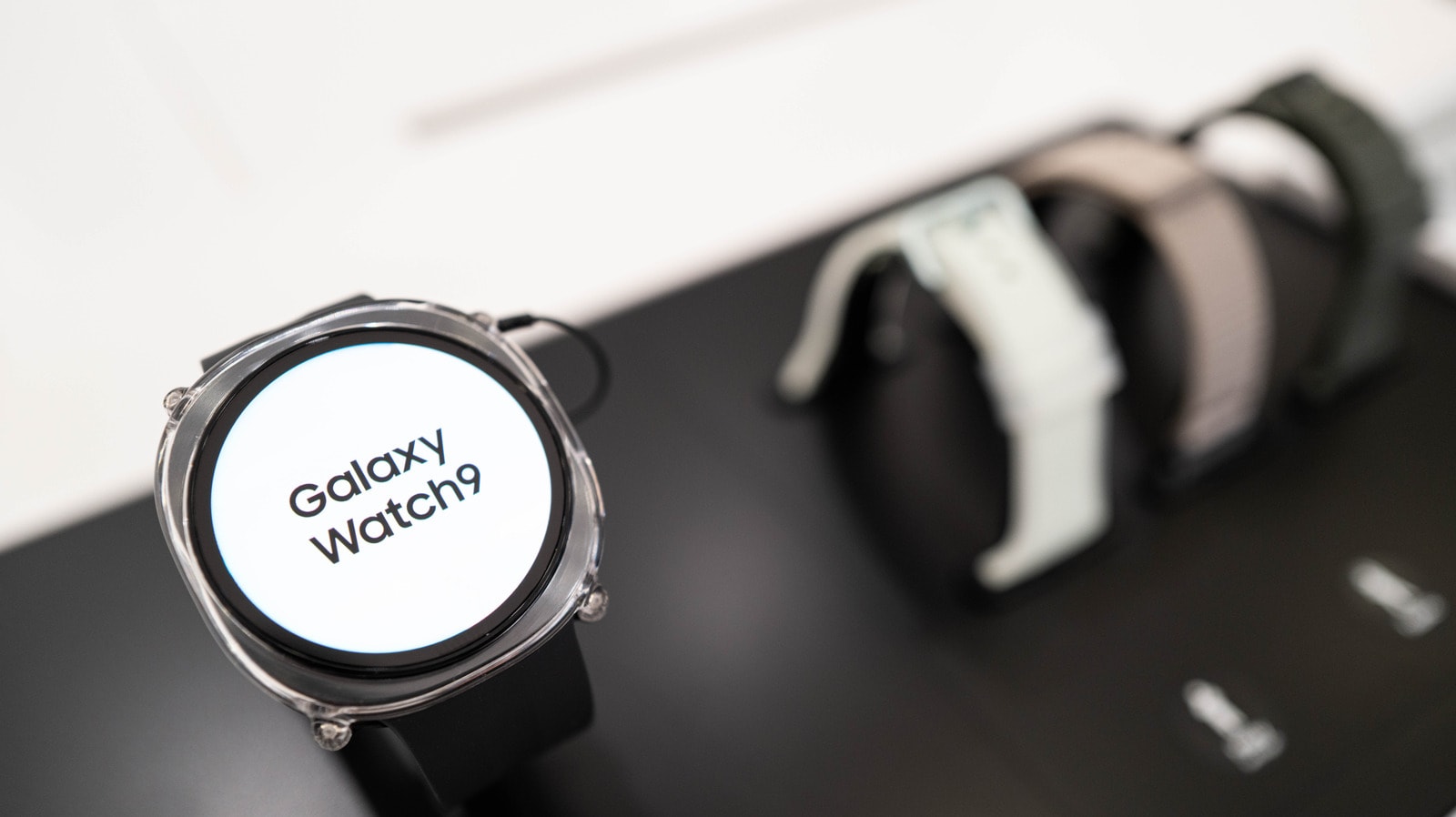
What the orange dot signifies
For Samsung smartwatch users, particularly those new to the Galaxy Watch ecosystem, a small orange dot appearing on the left side of the screen might seem unusual. In reality, it is a simple and effective way to stay informed about your notifications. The orange dot acts as an indicator that you have unread notifications on your device. It remains on the screen until you have reviewed all incoming alerts. Notably, if the dot is red rather than orange, it indicates an urgent notification that should be checked as soon as possible. This feature is standard on the latest Samsung models, including the Galaxy Watch 8, Galaxy Watch 9, and Galaxy Watch Ultra 2.
How to disable the notification indicator
While this feature is quite useful, not everyone wants additional symbols cluttering their watch face. Fortunately, Samsung provides a way to turn it off. You can do this directly from the watch by navigating to Settings > Notifications > Advanced Settings and toggling off the "New notification indicator on watch face" option. You can perform the same action via your smartphone by opening the Wearable app, going to Watch Settings > Notifications > Advanced notification settings, and disabling the indicator there.
Other important symbols on your watch
The orange dot is not the only symbol you will encounter on your Galaxy Watch screen. The device uses various graphical icons to save space on its compact display and provide real-time information. For example, the following may appear at the top of the screen:
- A crossed-out phone icon: Indicates the watch has lost its Bluetooth connection to your smartphone.
- A rectangle with a cloud: Shows that the watch is connected to the smartphone via Wi-Fi or mobile data rather than Bluetooth.
- A padlock symbol: Means the watch is locked and requires a PIN or password to unlock.
A blue musical note may also appear at the bottom of the screen, indicating that music is playing or paused; tapping this icon allows you to control your audio directly. Additionally, during a phone call, a green phone icon will appear in the same area. Understanding these system symbols will help you manage your device more effectively and ensure you never miss an important event, whether it is a notification or an incoming call.