How to Use Google Messages as a Task Reminder App
Why managing reminders is difficult
Many of us face a familiar problem: dedicated reminder apps are often so polite and subtle that we easily ignore them. We swipe the notifications away, hoping to deal with the task later, only to forget about it entirely. This isn't necessarily the fault of the apps themselves; rather, their format is often not dramatic enough to command our attention amidst a busy daily routine.
Messaging yourself as a solution
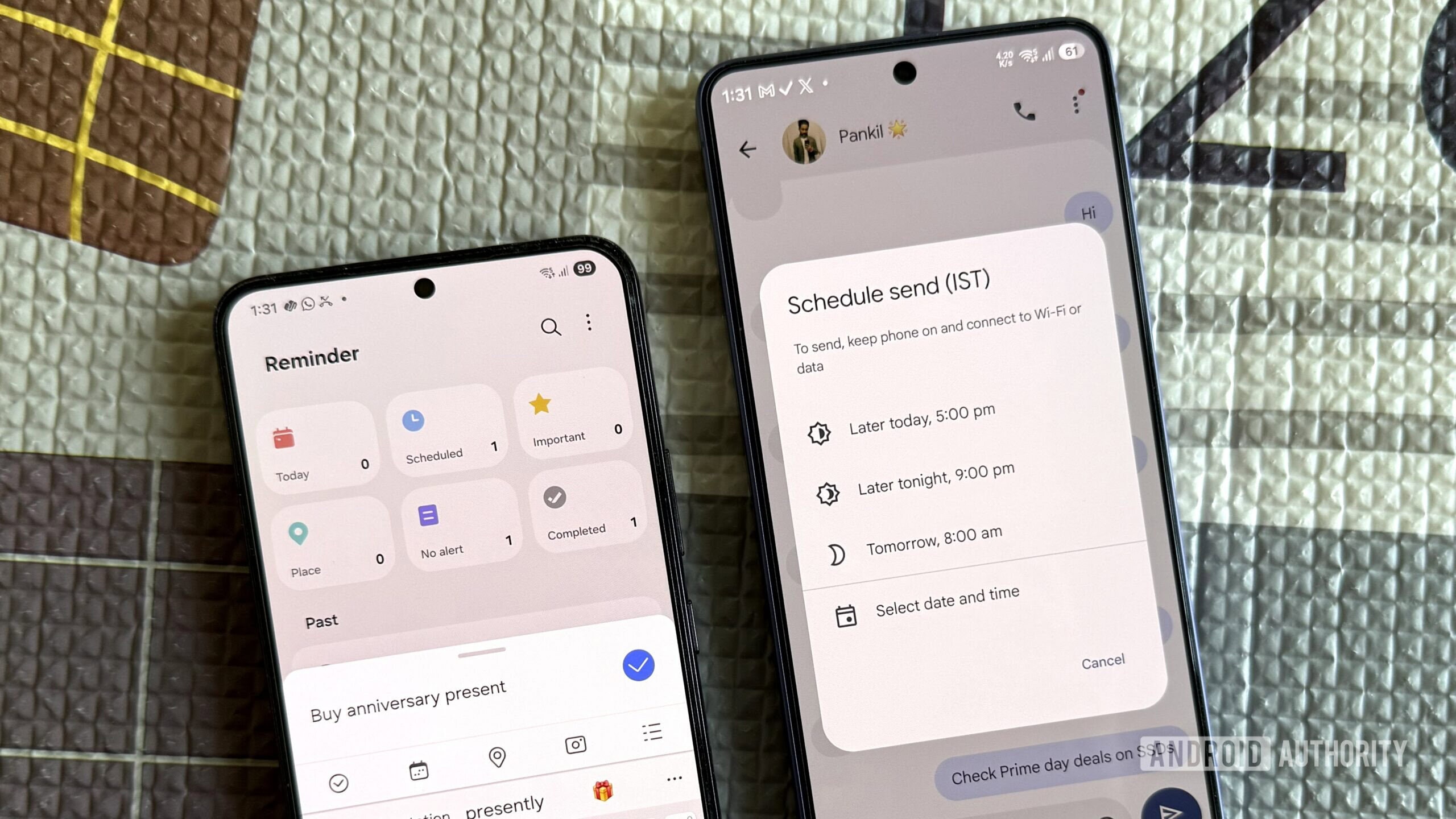
Social platforms have recently popularized an idea that might sound strange at first: sending scheduled text messages to yourself. With Google Messages, you can compose a message and specify exactly when you want to receive it. This method has proven far more effective than notes in calendars or dedicated reminder apps. The reason is simple: a message that appears directly in your chat list is far more intrusive and demands attention. It does not disappear until you open it and acknowledge it.
How to set up this feature in Google Messages
The process is straightforward. Open the Google Messages app and start a new conversation, entering your own phone number as the recipient. Type out the task or reminder you want to be notified about. Instead of simply tapping the send button, long-press the 'Send' icon. This will activate the 'Schedule send' menu, where you can select your preferred date and time. Once the scheduled time arrives, you will receive the notification just as if a friend had messaged you. This method is ideal for those who want to consolidate tasks within the space where they already spend the most time. This Google Messages feature effectively turns your chat app into a personal assistant that ensures you won't forget your tasks.