How to Set Waze as Your Default Navigation on Pixel Smartphones
Bypass system restrictions and switch your primary navigation app with this simple workaround.
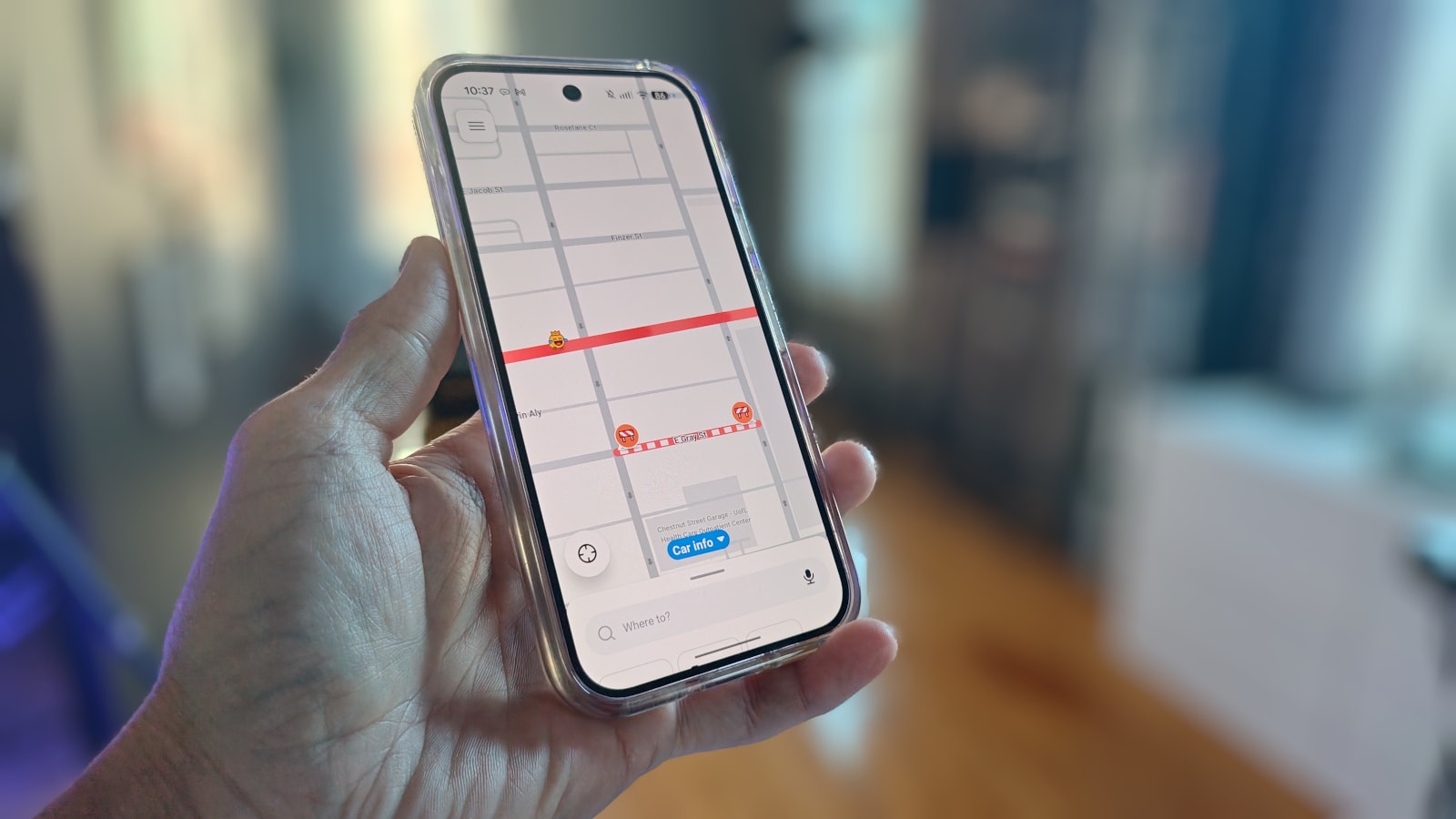
The Limitations of Google Maps and Seeking Alternatives
Recently, many users have complained about the cluttered interface and navigation glitches within Google Maps. If you own a Pixel smartphone and want to replace Google Maps with the more flexible Waze, you may encounter a hurdle: following recent Android updates, changing the default navigation app directly through settings is no longer possible.
The traditional method, which involved using the 'Default apps' menu, is now restricted. However, there is a simple workaround that allows you to force the system to automatically use Waze when opening addresses.
Step-by-Step Guide: How to Enable Waze
The main trick lies in temporarily disabling Google Maps. Before doing this, ensure that Waze is already installed from the Google Play Store. The process is as follows:
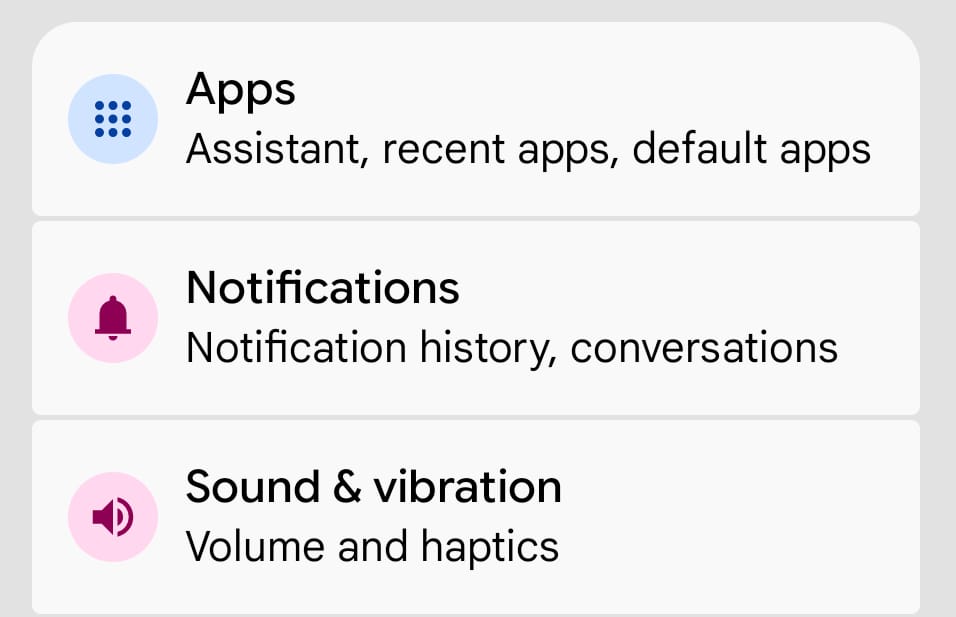
- Open your phone's Settings and go to the Apps section.
- If you do not see Maps immediately, tap See all apps and locate Google Maps in the list.
- On the application page, tap the Disable button.
Once you disable Google Maps, the Android operating system will 'forget' it as the default application. Now, when you tap an address in your calendar or another app, the system will automatically suggest using Waze. At this point, select 'Always' to make it your permanent choice.
Customising Android Auto
If you use Android Auto in your car, it is important that the Waze icon is accessible. To do this, follow these instructions: go to Settings > Connected Devices > Connection Preferences > Android Auto. Here, select Customize launcher and ensure that Waze is checked. Optionally, you can move its position up in the list so that you can find it more easily on your car's screen.
It is worth noting that this method works on Pixel smartphones and most other Android devices. However, Samsung users may experience different results when performing a similar procedure, as their interface and system priorities differ slightly from stock Android. With this simple change, you will enjoy more comfortable navigation that better suits your needs.