How to Improve Your TV Image Quality by Adjusting HDMI Ports
Don't settle for default settings; here is how to unlock your display's full potential.
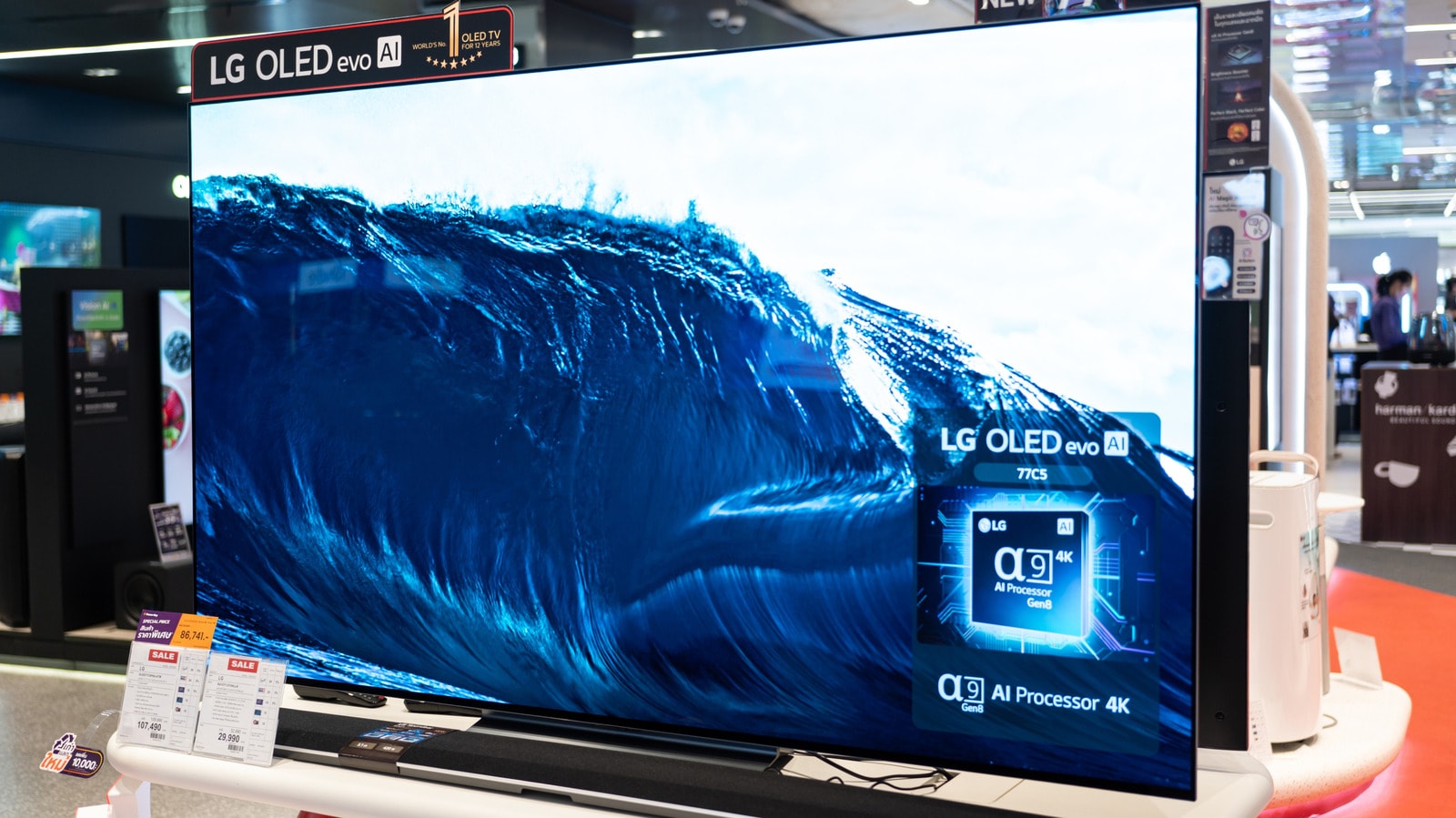
Most modern televisions are not factory-optimized for the best visual experience right out of the box. Manufacturers often default to conservative or "store demo" modes, which actually degrade image quality. However, the issue is not just within the TV's menu; the settings for HDMI ports, which determine the signal quality from consoles and media players, are frequently overlooked.
Why HDMI Port Optimization Matters
HDMI ports are often set to "Standard" mode by default to ensure maximum compatibility. In practice, this means your 4K television and high-performance devices, such as a PlayStation 5 or modern Blu-ray players, cannot utilize their full potential. To remove this limitation, you must switch your ports to "Enhanced" mode.
This setting allows the port to use its full bandwidth. This is essential for features like Dolby Vision, HDR10+, or refresh rates higher than 60Hz. While current televisions, such as Samsung's Frame Pro or the latest OLED models, can support up to 240Hz, users are often stuck at 60Hz due to incorrect configurations.
How to Choose the Right Mode
Some televisions offer multiple "Enhanced" tiers. If your device provides such options, prioritize based on what you are connecting:
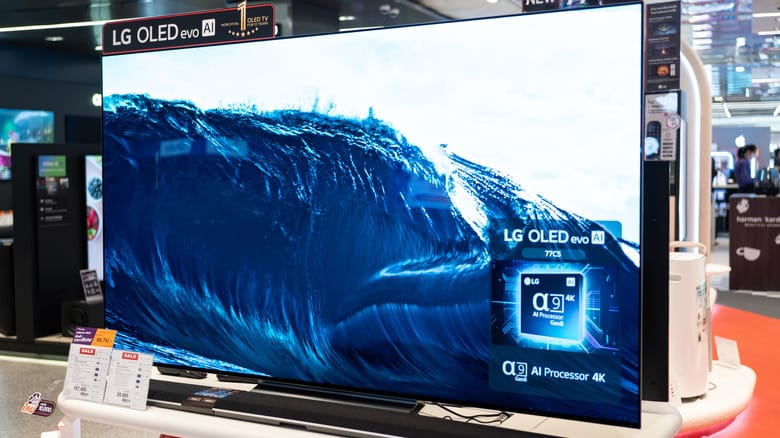
- Gaming consoles and PCs require high refresh rates and Variable Refresh Rate (VRR).
- Media streamers and movie players primarily require robust HDR support.
Also, keep an eye out for a feature called HDMI Deep Color. This technology expands color depth, which is vital for displaying HDR content correctly. If you are using an LG television, you can find this setting by navigating to Settings > General > External Devices > HDMI settings. It is recommended to always select a setting higher than 8-bit, as 8-bit only supports standard dynamic range (SDR).
Additional Tips for Gamers
If you are connecting your TV to a PC or console, look for "Chroma Subsampling" settings. This technology compresses color data. While less noticeable when watching films, if you are using your TV as a monitor, switching to 4:4:4 mode will make text significantly sharper and more readable.
Checking these settings takes about 15 minutes, but the results—improved image clarity, color accuracy, and smoother motion—are well worth the time. Ensure that every HDMI port on your TV is optimized for the specific device connected to it.