How to Enable Personal Results on Google Home
Harnessing Voice Match and Gemini for a tailored smart home experience
An Intelligent Assistant at Your Service
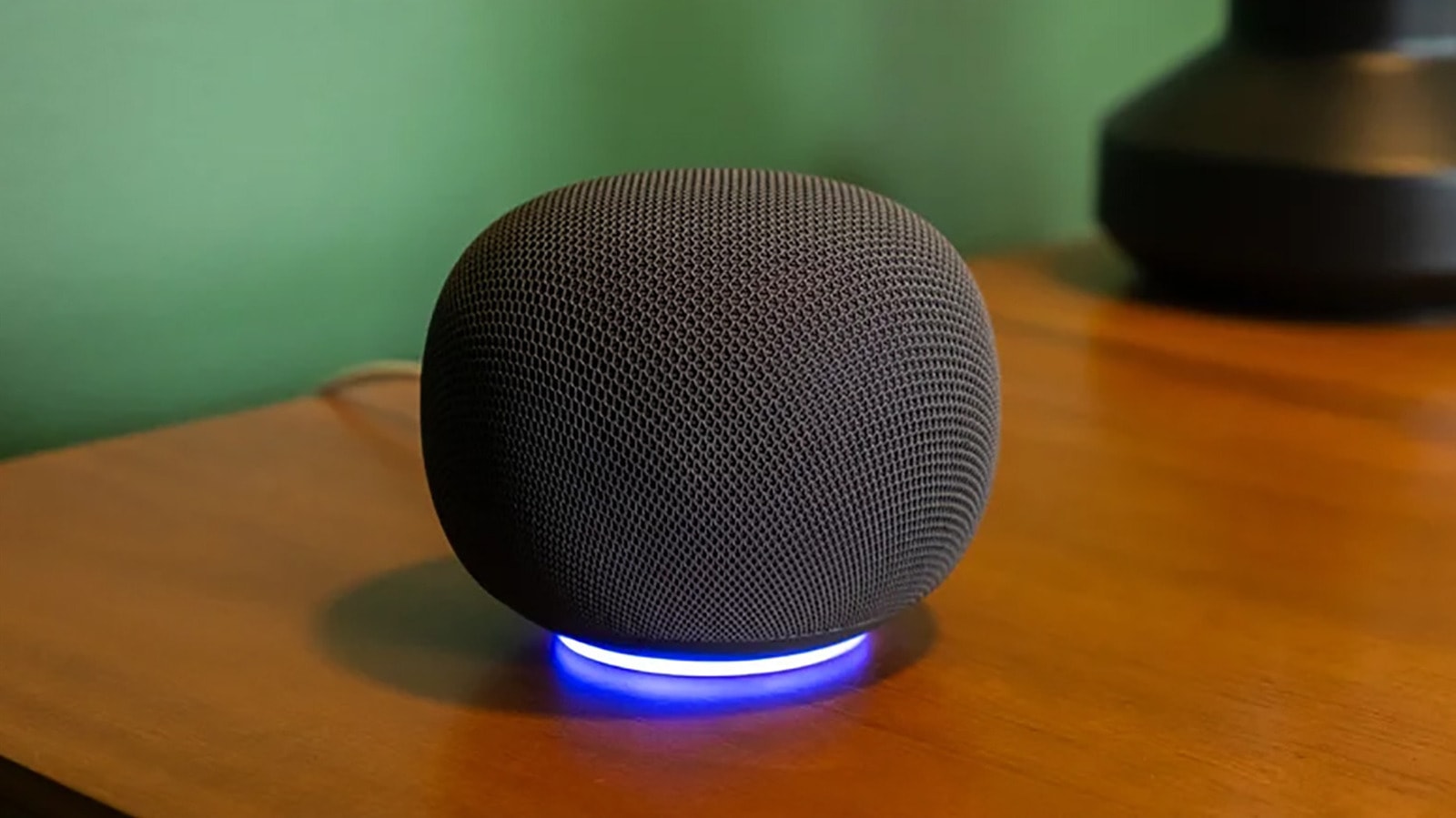
Google Home smart speakers and compatible devices have reached a new milestone with the integration of Gemini. Since August 2025, Google has made the assistant more contextual and responsive to conversation. This means the device can better understand natural speech and answer queries by taking your personal data into account.
Through the Voice Match feature, the speaker learns your voice and distinguishes it from those of other family members. Consequently, when you ask, "What is on my calendar?", the system automatically processes your personal schedule rather than providing generic information.
How to Set Up Personal Results
To activate personalisation, you must first configure Voice Match in the Google Home app. Follow these steps:
- In the app, select your profile photo and go to Home settings.
- Select Gemini for home assistant, then choose Voice Match.
- Return to the main menu (Home > Settings), navigate to Features, and select Google Assistant > Personal results.
- Select the devices on which you want to enable this feature.
Once this procedure is complete, the speaker will have access to your calendar, Google Keep notes, lists, photos, and other personal details. It is important to note that if you disable Voice Match but leave personal results active, anyone who speaks to the speaker will be able to access your personal data. Therefore, enabling Voice Match is essential for devices located in shared spaces.
Family Benefits and Limitations
The system supports up to six different user profiles. For every family member to benefit from personalised responses, each person must individually complete the Voice Match registration. In this case, the speaker will identify who is speaking based on their vocal timbre; it will remind a parent of their notes, while providing a child with information about their school test.
If a guest or someone without a profile speaks to the device, the speaker will provide only general, non-personalised answers. This is a secure and convenient way to use a digital assistant at home. If the device frequently fails to recognise you, try moving it to a quieter location or re-running the voice recognition training.
Google Home devices are becoming increasingly popular as part of the smart home experience. Understanding these features will help you make your daily routine more organised and technologically efficient.