How to Disable Automatic Music Playback on Android Auto
Take control of your car's audio system with these simple adjustments.
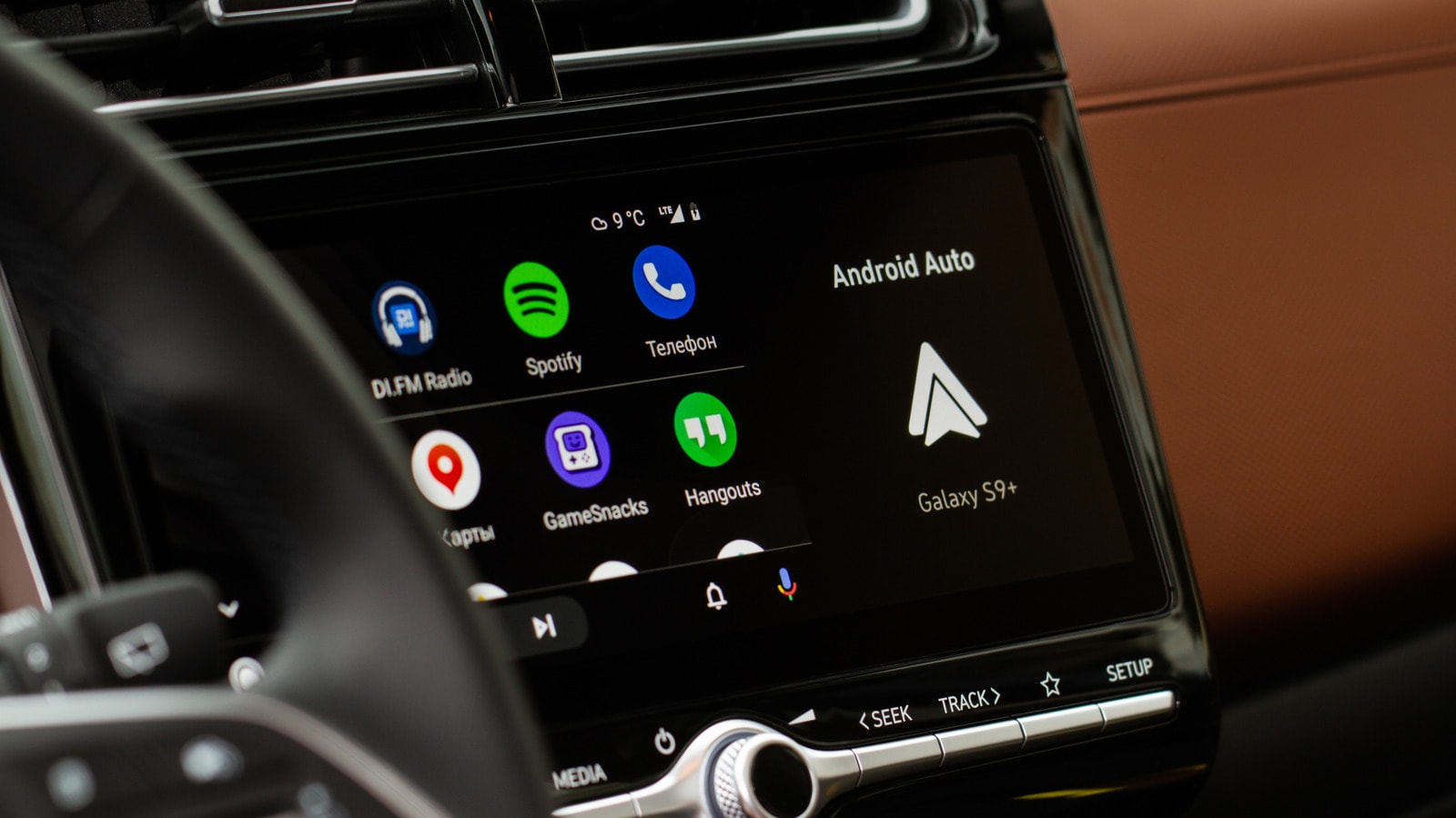
Many drivers are familiar with the experience of starting their car only for Android Auto to immediately blast the last song or podcast they were listening to. While designed for convenience, this feature often creates unexpected noise, which can be particularly disruptive during a quiet morning commute or when travelling with children.
First Steps: Android Auto Settings
For years, users had to rely on complex workarounds to solve this, but the solution is now much simpler. First, check your Android Auto settings. Navigate to your phone's Settings, select Connected devices, and then Android Auto. Under the Startup section, you will find the "Start music automatically" toggle. Turning this off will prevent music from playing the moment you connect to your vehicle. For many users, this is all that is required.
If the Problem Persists
If music continues to play automatically after adjusting these settings, the issue may stem from specific Bluetooth behaviour. Android Auto uses Bluetooth to establish an initial connection and manage calls. In some cases, the problem can be resolved by removing the phone from the car's Bluetooth memory and connecting exclusively via a USB cable.
It is also important to remember that automatic playback is not always the car's fault. Any other Bluetooth device connected to your phone, such as headphones or portable speakers, might be sending a "play" command to Spotify or other audio apps. According to Spotify support, the app often cannot block commands from external devices because it depends on how the specific device interacts with the application's API.
Radical Measures and Tips
If the methods above do not yield results, ensure that both your phone's operating system and the Spotify app are updated to the latest versions. Some users solve the problem by completely removing the Spotify app from Android Auto, though this means you will no longer be able to control your music from the car's display.
Ultimately, Bluetooth behaviour varies significantly depending on both the car model and the phone. Try adjusting your Android Auto settings first; if the issue persists, experiment by checking your connections with other Bluetooth devices. The best results are often achieved through trial and error.