How to Decipher the LED Indicator Lights on Your Netgear Router
A guide to understanding your device's status lights
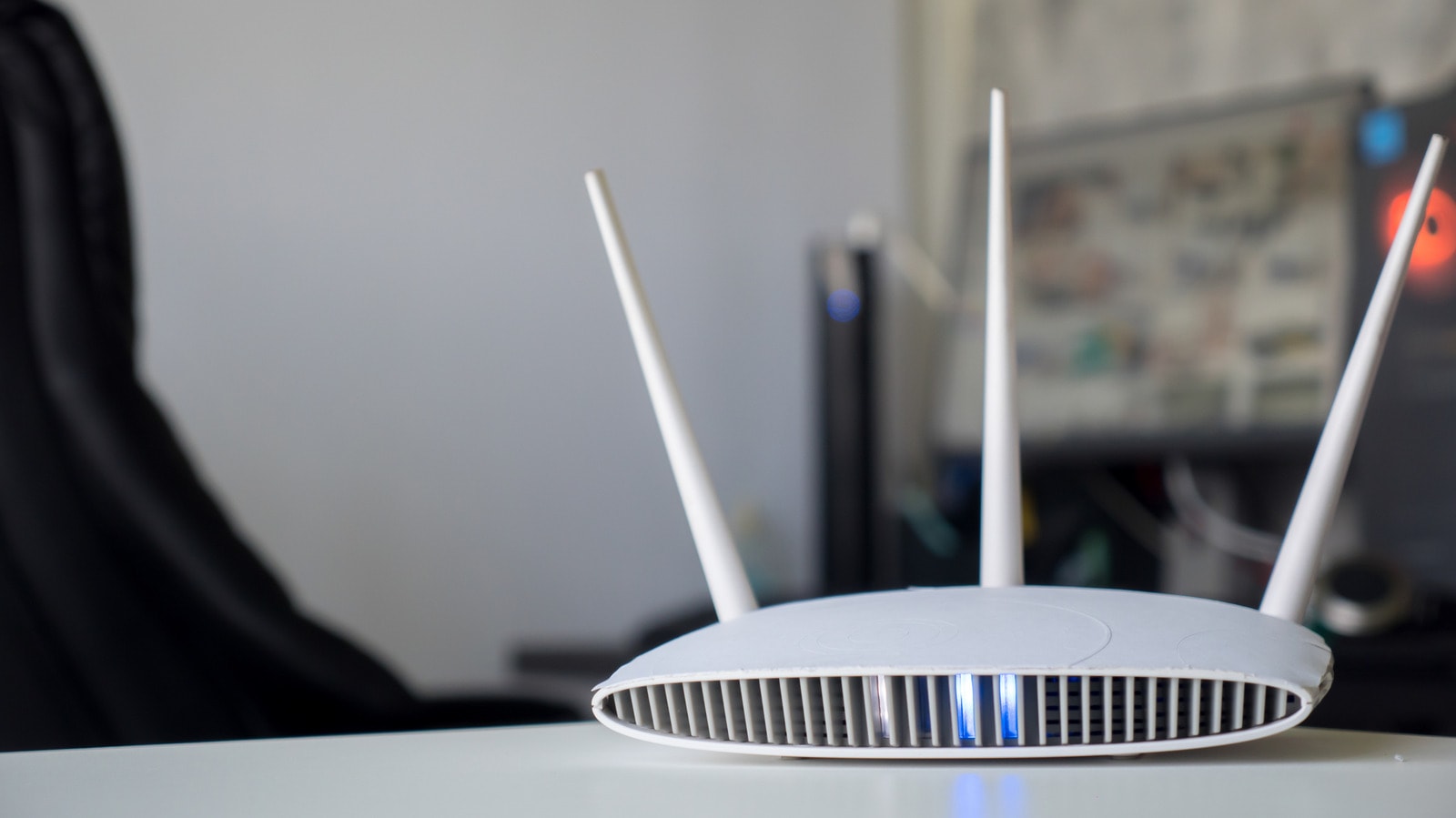
Router Diagnostics at a Glance
The array of lights on the front panel of a Netgear router, often flashing in different colours, can initially seem complex. However, understanding their meaning is critical for monitoring network health and troubleshooting issues effectively. Whether you are using a standard model or a modern mesh system, each light serves a specific diagnostic purpose.
Key Indicators to Monitor
The most important indicator is the Power light, marked with a classic symbol. It indicates not only the power status but also the state of the device's firmware. If the router becomes unresponsive, a reboot is the first recommended step, while a factory reset may be necessary in critical cases.
The internet connection status is represented by a circle icon, while Wi-Fi activity is indicated by a dot flanked by curved lines. These two lights are the primary indicators of whether your network is functioning as intended.
Additional Ports and Frequency Bands
Modern routers will feature indicators for 2.4GHz and 5GHz bands. Devices supporting the Wi-Fi 6E standard also include a 6GHz indicator. Regarding wired Ethernet ports, the lights signify connection speed: white or green indicates a 1Gbps connection, while orange denotes a slower 100Mbps or 10Mbps connection.
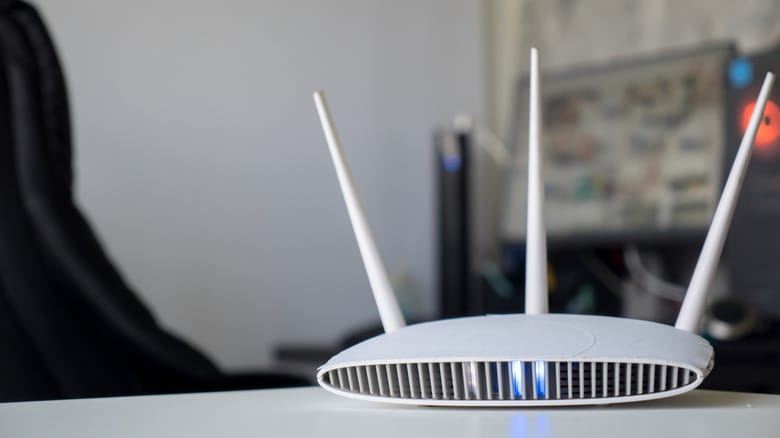
Additionally, routers may feature USB port indicators and a signal for the WPS (Wi-Fi Protected Setup) button. It is important to remember that for security reasons, it is recommended to disable the WPS function, as it can become a vulnerability in your network.
Differences in Mesh Systems
Netgear Orbi mesh systems use a minimalist approach. The front-facing indicator shows only the connection status, while the light on the back is responsible for power and firmware status. This design allows users to more easily identify which component requires attention.
For users in Georgia, where internet quality and stability are priorities, correctly interpreting these indicators helps avoid unnecessary time spent contacting technical support. If your router displays an unusual light colour, always check your cable connections and restart the device if necessary.