How to Avoid Common Mistakes When Setting Up Your Home Wi-Fi
Optimizing your home network for speed and stability
Proper Router Placement
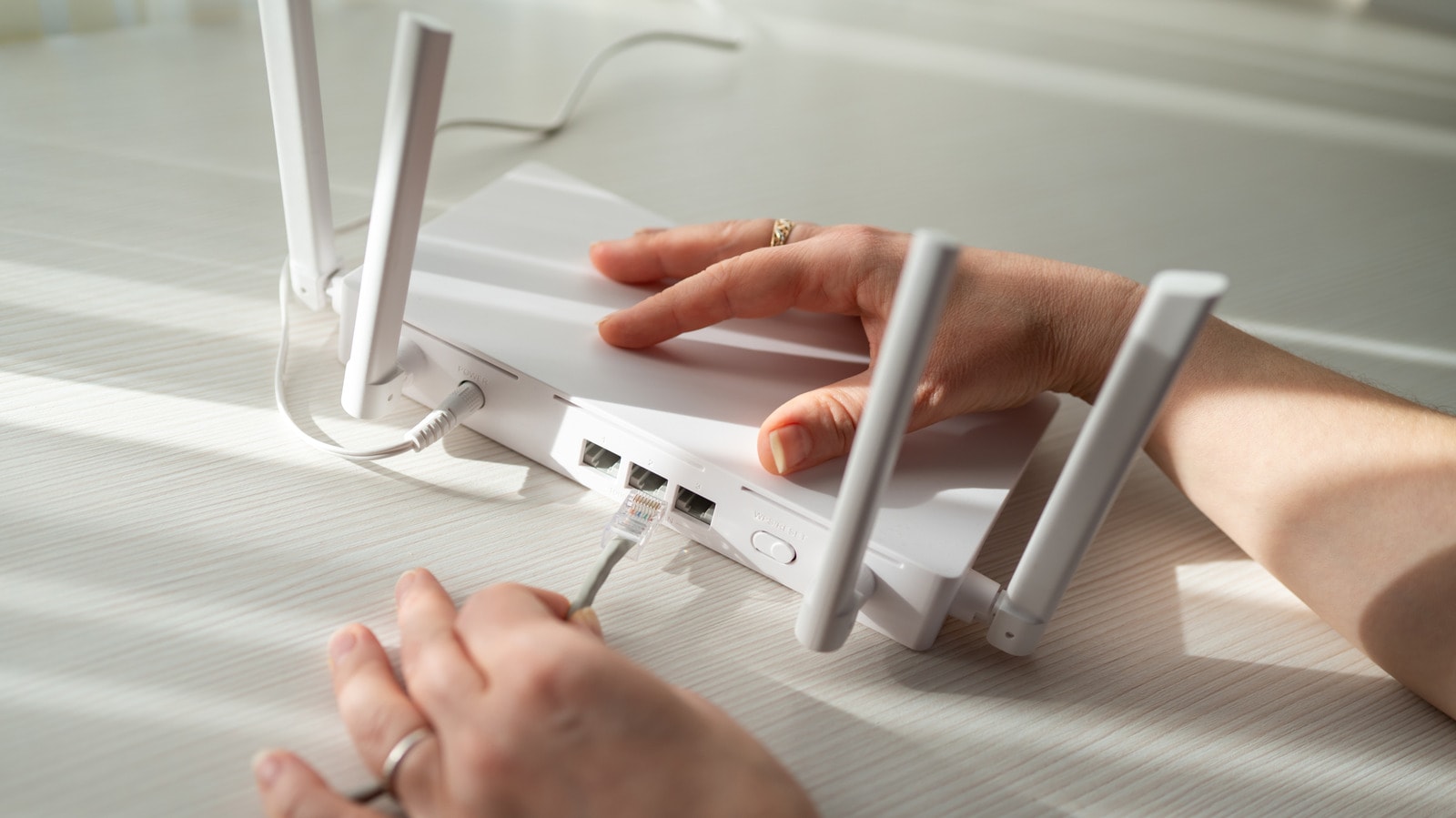
Setting up a home network may seem straightforward, but minor mistakes often lead to signal drops and reduced speeds. The most common error is poor router placement. While these devices are not always aesthetically pleasing, hiding them in corners or behind furniture is not recommended. A router should be located in a central part of the home to ensure an even distribution of the signal across all rooms.
Furthermore, the impact of other electronic devices is significant. Do not place your router near appliances like microwaves, cordless phones, or baby monitors. These devices create radio interference that directly degrades the Wi-Fi signal. If your internet entry point is in a peripheral room, it is better to use an Ethernet cable to create an additional access point in another part of the house.
Wired Versus Wireless Connections
Many believe that a wireless connection is sufficient for a modern home, but this is not always the case. Online gaming, high-quality streaming, and video calls require a stable connection. If you have many devices at home—smartphones, televisions, and gaming consoles—they compete for bandwidth. Therefore, using an Ethernet cable for a gaming PC or a stationary workstation is the best solution. Modern Cat6a cables provide speeds of up to 10 gigabits and protect the connection from external interference.
Security and Software
Users often ignore router security settings, which poses serious risks. First, it is essential to enable WPA3 encryption. If your devices are older, use the WPA2/WPA3 transition mode. Never use outdated WEP or TKIP standards.
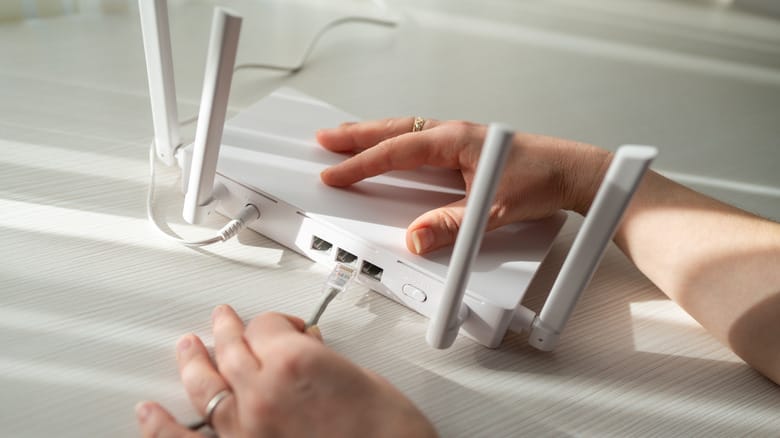
Do not forget to change the router's administrator password; this is not the same as your Wi-Fi password. The administrator password protects the router's settings from unauthorized access. Additionally, regularly check for firmware updates to protect your network from known vulnerabilities.
Planning and Compatibility
Before purchasing a new router or Mesh system, always check how it will work with your existing equipment. Having two DHCP servers running on one network can cause conflicts, so when adding an extra router, use 'bridge' or 'access point' mode. Implement any network changes step-by-step and keep track of which cable serves which purpose. This approach will help you easily identify the source of a problem should one arise.
Ultimately, setting up a home network is about finding a balance between convenience and technical performance. While some of these tips may seem complex, following them will significantly improve the quality of your home internet.