Damaged External Hard Drive: Why You Should Not Plug It In
Understanding the risks of connecting a dropped storage device
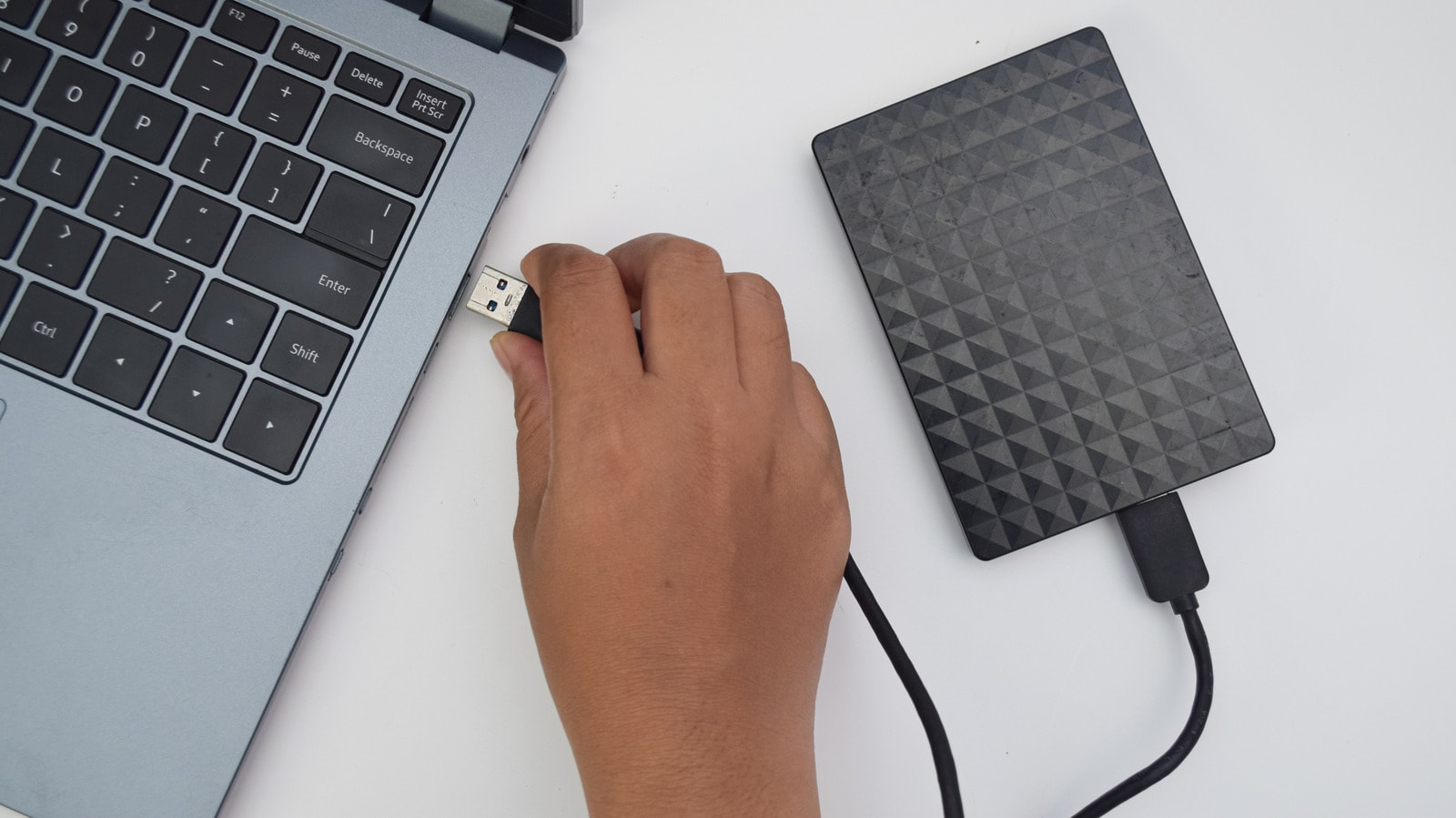
Why HDDs Are More Fragile Than You Think
External hard drives, commonly known as HDDs, often appear to be sturdy devices. However, beneath their casing lies a complex mechanism composed of moving parts. Unlike modern SSDs that use electronic memory, HDDs store information on magnetic platters. The distance between these platters and the read/write heads is measured in mere nanometres. Consequently, even a minor drop can disrupt this delicate balance and damage the drive.
Why "Just Checking" Is Dangerous
Many people are tempted to connect a dropped drive to their computer immediately to see if it still works. This is the biggest mistake a user can make. A hard drive spins at 5,400 or 7,200 revolutions per minute during operation. If the heads were deformed by a drop, turning the device on will cause them to drag across the platters, scratching the surface. These scratches represent physical data destruction, which is often impossible to recover. Furthermore, microscopic debris generated by these scratches begins to circulate inside the drive, triggering a chain reaction that worsens the damage.
How to Handle a Damaged Drive
If your external drive has fallen, especially if it was in operation at the time, stop all attempts to power it on. Do not shake, open, or freeze the drive—these actions will only make the situation worse. If the information stored on the drive is critical and you lack a backup, the only correct course of action is to contact a professional service centre.
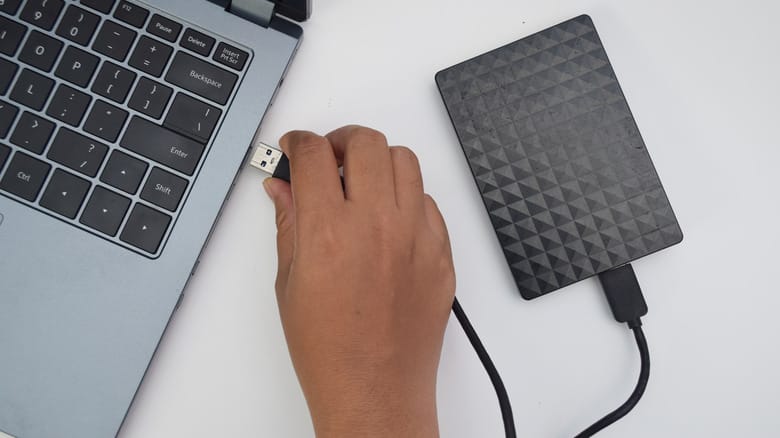
If the data is not vital and you are willing to take the risk, you can perform a cautious test. Connect the drive and listen carefully. If you hear strange noises such as clicking, squealing, or grinding, or if the drive constantly reboots, disconnect it immediately. If the drive turns on and the data is accessible, first copy your most important files to another storage medium.
Afterwards, you can use specialised software like CrystalDiskInfo to check the drive's SMART (Self-Monitoring, Analysis, and Reporting Technology) data. If the software displays any warning, it means the drive is no longer reliable and should not be used. Remember, the best way to avoid such problems in the future is to handle the drive with care, avoid moving it while it is running, and always disconnect it properly using the 'Eject' function.