Apple Updates Auto-Lock Settings for macOS Passwords App
The upcoming macOS 15.2 update allows users to set their own inactivity timeout for the password manager.
Greater flexibility in security settings
Managing passwords is becoming more convenient for Apple operating system users. As revealed in the macOS 15.2 beta, the company is introducing new, flexible auto-lock settings for the Passwords app. This change is a significant step for those who rely on the Apple ecosystem to store their accounts securely.
Currently, in macOS 15.1 and earlier versions, the Passwords app operates under a rigid rule: it automatically locks after three minutes of inactivity. This limitation can be inconvenient, particularly for users who frequently need to access the app to check credentials.
What changes with the update
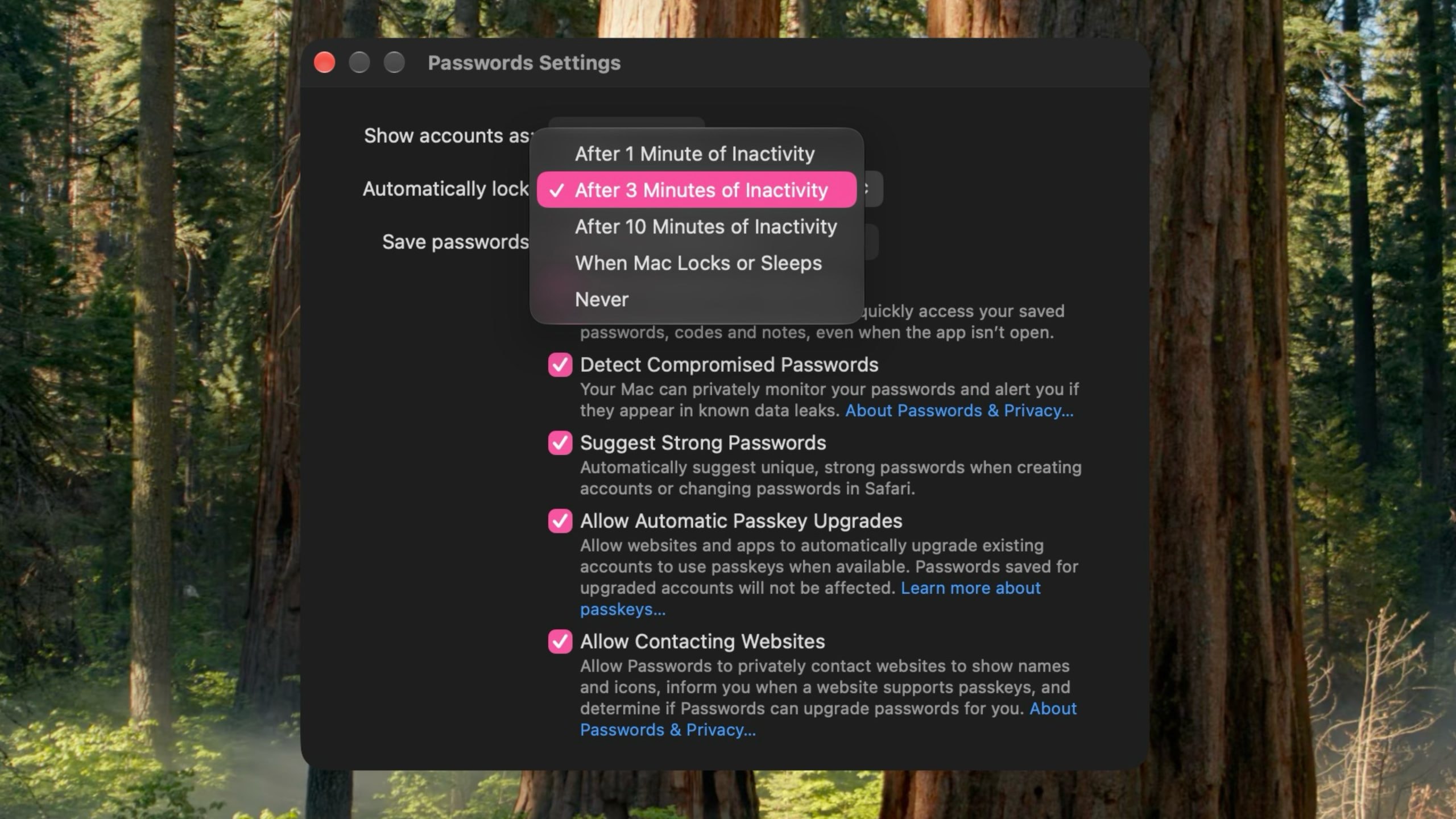
The new functionality offers a much wider range of choices. With the arrival of macOS 15.2, scheduled for December, a specific menu will appear in the settings. Users will be able to select the inactivity period before the app locks: one, three, or ten minutes.
Beyond time intervals, more flexible scenarios will be added. Users can configure the app to lock automatically only when the Mac enters sleep mode or the screen is locked. Furthermore, an option will be available to never lock the app automatically, allowing it to remain open at all times.
Why this matters
Apple first introduced its dedicated Passwords app alongside macOS Sequoia in September 2024. Since then, the company has been actively refining the tool to ensure it remains competitive against other popular password managers.
With this change, Apple is reiterating that security should not conflict with user experience. While security standards require frequent locking, granting users control allows individuals to adjust their level of protection based on their specific workflows.
For users who actively rely on iCloud and Apple devices, this update will provide additional convenience. Following the system update scheduled for December, you will be able to access the settings and choose the optimal locking mode for your needs. It is a small but significant detail that makes the Mac experience more personalised.